Gmail app password for SMTP (Gmail and Google Workspace)
Create a Gmail or Google Workspace app password, use the right SMTP and IMAP settings, and connect the mailbox to a cold email tool.
Video transcript
Welcome to Swift Outbox. In this video: connect your sending accounts, and send a test email. Open Settings, then Sending accounts. Emails are spread across every account that is turned on.
First, get an app password. For Gmail or Google Workspace, turn on 2-Step Verification, then create one in your Google account. Microsoft 365 uses your password, or an app password if 2-step is on. Click Add sending account, and pick your provider: Gmail, Outlook and Microsoft 365, Zoho, or Custom for any other SMTP host.
Name the account. Only you see this name. Add the sender name people see, and the sender email: the account you are connecting. Enter your email address as the username, and paste the app password.
For Custom, enter the server and port from your host. Set safe limits: thirty to fifty emails a day for a new account, and a minute between emails. Then click Add account. Now the important part.
Campaigns can only use an account after a test email goes through. Until then, it shows: Not tested yet. Click Send test, enter an address you can check, and click Send test email. When it says Test email sent, check that inbox, and the spam folder.
If you change the server, login, password, or sender email, send a new test. Each campaign also sets its own sending days, hours, and daily limit. The lowest limit always wins. That's it: an app password, safe limits, and a test email that goes through.
Next, connect your reply mailbox. Subscribe for more Swift Outbox tutorials.
On this page
To send email from Gmail or Google Workspace through another app over SMTP, you need an app password: a 16-character password Google creates for one app, so you never share your real password. Turn on 2-Step Verification in your Google account, open the App passwords page, create one and copy it. Then use these settings in any SMTP client: server smtp.gmail.com, port 587 with TLS (or 465 with SSL), your full Gmail address as the username and the app password as the password. To read replies, use imap.gmail.com, port 993, SSL. This works the same in Swift Outbox and most cold email tools.
How to create a Gmail app password
- Sign in to the Google account you want to send from.
- Turn on 2-Step Verification under Security in your Google account, if it is not on yet.
- Open Google app passwords.
- Type a name you will recognize, such as “Swift Outbox”, and create the password.
- Copy the 16 characters Google shows. Leave out the spaces when you paste it.
Google shows the password only once. If you lose it, remove it and create a new one. Source: Sign in with app passwords (Google Account Help).
Warning: Never paste your password into a support ticket, a chat or a document. If someone asks for it, they are not us.
Gmail SMTP and IMAP settings
| What | Server | Port | Security |
|---|---|---|---|
| Sending (SMTP) | smtp.gmail.com | 587 | TLS (STARTTLS) |
| Sending (SMTP), other option | smtp.gmail.com | 465 | SSL |
| Replies (IMAP) | imap.gmail.com | 993 | SSL |
Username: your full email address. Password: the app password. These are the same for free Gmail and Google Workspace accounts. Source: IMAP, POP, and SMTP (Google for Developers).
IMAP is always on for personal Gmail accounts since January 2025, so there is no setting to switch on.
Google Workspace app password: what the admin must allow
On a work account (you@yourcompany.com hosted by Google), three admin settings decide whether an app password works:
- 2-Step Verification allowed. In the Google Admin console, Security > Authentication > 2-step verification, the box Allow users to turn on 2-Step Verification must be ticked. Source: Deploy 2-Step Verification.
- Not security keys only. Google says enforcing security keys disables app passwords. Source: How 2-Step Verification works with legacy apps.
- IMAP open to any mail client. In Apps > Google Workspace > Gmail > End User Access, IMAP must be on with Allow any mail client. The option “OAuth mail clients only” blocks app passwords. Source: Turn POP and IMAP on or off for users.
What “Error 400: admin_policy_enforced” means
You see this error on Google’s sign-in screen when a tool connects with Sign in with Google and your Workspace admin has not trusted that tool under the Admin console’s API controls. Swift Outbox does not use Google sign-in for mailboxes, so you will not see this error here. An app password over SMTP and IMAP skips that approval screen, but the admin settings above still apply.
Connect Gmail in Swift Outbox
A sending account is a mailbox the app sends your campaigns from. Emails are spread across every account that is turned on, each within its own limits. You manage them in Settings > Sending accounts.
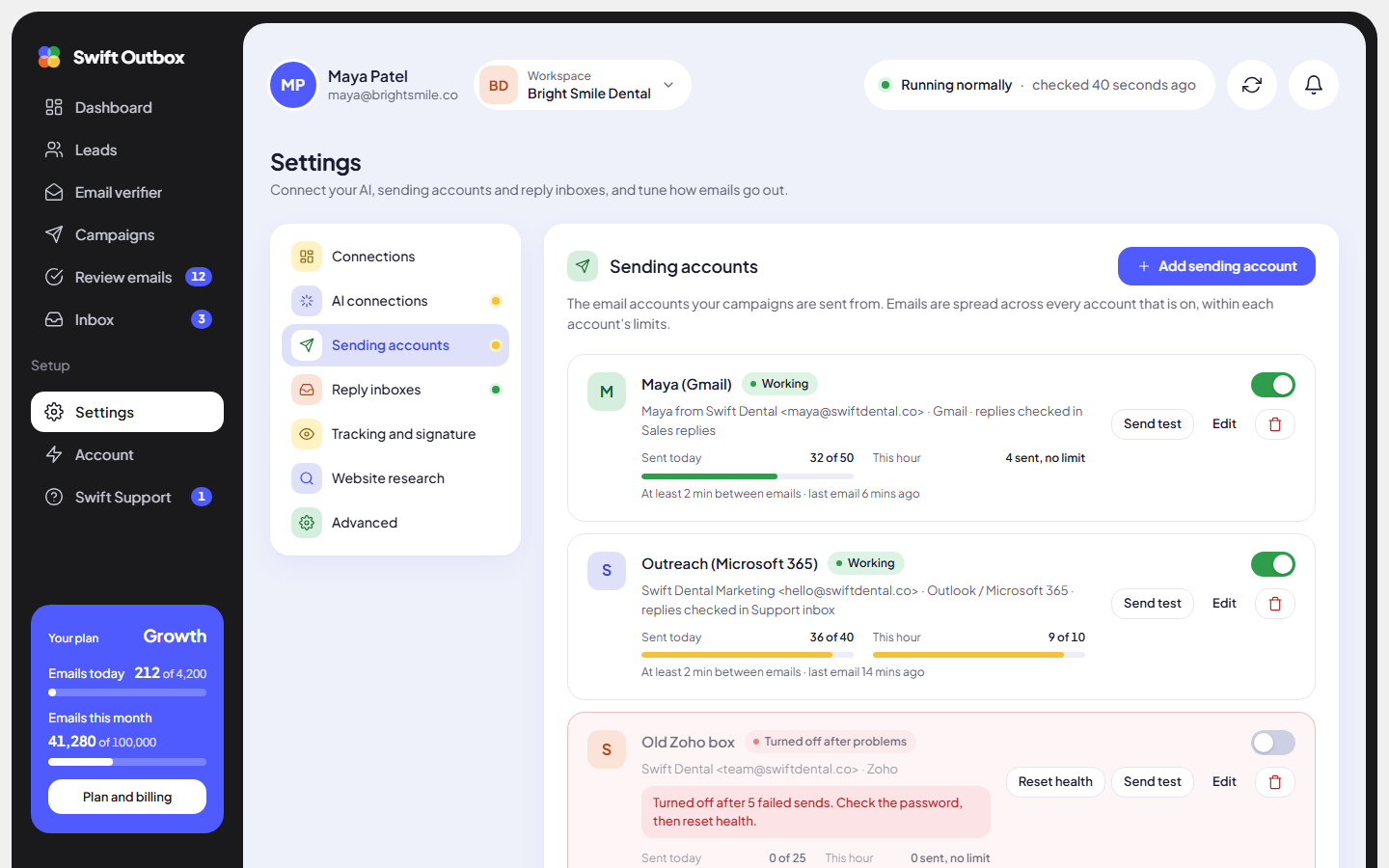
- Go to Settings > Sending accounts and click Add sending account.
- Under Email provider, pick Gmail / Google Workspace. The server details fill in for you (smtp.gmail.com, 587, TLS).
- Account name: a label only you see, for example “Dr. Lee main Gmail”.
- Sender name: the name people see in their inbox, for example “Dr. Lee Dental Marketing”.
- Sender email: the Gmail or Workspace address you connect.
- Replies go to (optional): a different address for replies. Leave it empty to use the sender email.
- Email address or username: your full email address.
- Password or app password: paste the app password.
- Under Limits, keep the Daily sending limit low on a new account (the default is 50), and pick the Reply inbox for this mailbox if you have one.
- Click Add account.
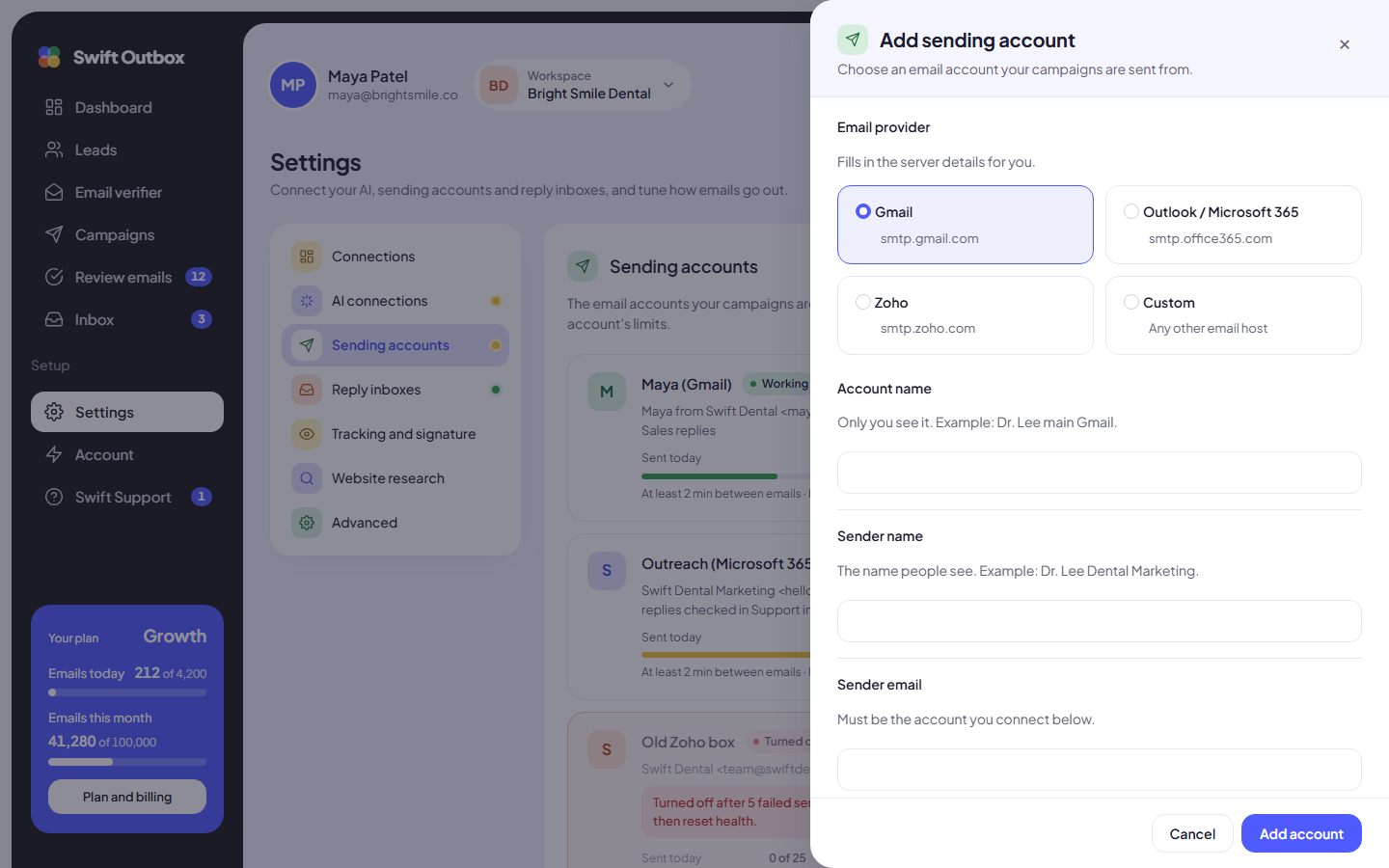
Send the test email
A campaign can only use an account after a test email from it has gone through. Saving does not test it.
- On the account row, click Send test.
- Enter an address you can check under Send the test to, and click Send test email.
- You should see “Test email sent to” your address. Check that inbox, and the spam folder.
Changing the server, login, password or sender email means sending a new test.
Connect the same Gmail for replies
Use the same app password to add a reply inbox in Settings > Reply inboxes with the provider Gmail / Google Workspace (imap.gmail.com, 993, SSL). Steps: How to track cold email replies with a reply inbox.
Troubleshooting Gmail app password and SMTP errors
| What you see | Likely cause and fix |
|---|---|
| “The test email could not be sent” right after adding | Wrong password type. Gmail rejects your normal password; paste the app password. |
| It worked, then the account shows Not working | You changed your Google password, which revokes app passwords. Create a new one, click Edit, paste it, save, then Reset health. |
| No App passwords page in your Google account | 2-Step Verification is off, uses security keys only, or a Workspace admin restricted it. See the admin section above. |
| Login works in Gmail but fails here (Workspace) | IMAP is limited to OAuth mail clients, or security keys are enforced. Ask your admin. |
| Turned off after problems | The app turned the account off after 5 failed sends in a row, to protect your other accounts. Fix the password, then click Reset health. |
| Emails land in spam | Usually a new mailbox sending too much, or missing SPF, DKIM and DMARC. See why cold emails go to spam. |
When you click Reset health you see “Health reset. The account is tried again on the next send.”
What the health badges mean
- Working: sending normally.
- Needs attention: something failed recently. Read the note on the row.
- Not working: the last attempt failed. Usually the password changed or the app password was revoked.
- Turned off after problems: 5 failed sends in a row.
- Turned off: you switched it off with the toggle.
- Not checked yet: no email has been sent from it yet.
Tip: Keep each Gmail account well inside Google’s limits. Read Gmail sending limits, then set your pace in daily limits and sending hours.
Next step
Using Microsoft instead? See Outlook and Microsoft 365 SMTP settings. Using Zoho or your web host? See Zoho Mail SMTP settings.
Common questions
Do I need 2-Step Verification to make a Gmail app password?
Yes. Google only offers app passwords on accounts with 2-Step Verification turned on. On a Google Workspace account, the admin must also allow users to turn on 2-Step Verification.
Why does my Google account not show App passwords?
Google hides the option when 2-Step Verification is off, when it uses security keys only, when the account has Advanced Protection, or when a work or school admin has restricted it. Ask your Workspace admin if you cannot change these yourself.
Which port should I use for smtp.gmail.com?
Port 587 with TLS (STARTTLS) or port 465 with SSL. Swift Outbox fills in 587 with TLS when you pick Gmail / Google Workspace. Replies are read from imap.gmail.com on port 993 with SSL.
Can I connect Gmail with Sign in with Google instead?
Not in Swift Outbox. Mailboxes connect over SMTP and IMAP with an app password, so there is no Google sign-in screen and no third-party app approval in your Google Admin console.
My app password stopped working. What happened?
Google revokes every app password when you change your Google account password, and you can remove one by hand. Create a new app password and paste it into the sending account and the reply inbox.
How many emails can I send from one Gmail account?
Google sets daily limits per account, and cold email should stay far below them. See Gmail sending limits for the numbers and safe daily volumes.
Still stuck? Open a ticket from Swift Support in the app, or contact us.