Connect your own AI key
Add an OpenAI, Claude, Gemini, OpenRouter or compatible key, pick a model, test it, set a budget and order your connections for automatic fallback.
On this page
Who this is for: anyone who already has an account with an AI provider, or wants to choose the model or pay the provider directly.
With your own key, the AI calls are billed by your provider, not from your Swift Pilot credit. Your own connections are always tried first. Swift Pilot stays behind them as the last fallback: if every own connection fails or reaches its budget and you have credit, Swift Pilot writes the email and is charged to your credit. Without credit, nothing is charged and the email waits.
Supported providers
| Provider | What you need |
|---|---|
| OpenAI | A key from your OpenAI account (platform.openai.com). |
| Anthropic Claude | A key from your Anthropic account (console.anthropic.com). |
| Google Gemini | A key from Google AI Studio (aistudio.google.com). |
| OpenRouter | A key from your OpenRouter account (openrouter.ai). |
| Custom (OpenAI-compatible) | The server address and key from your provider, for any service that speaks the OpenAI format. |
Add a connection
- Open Settings, then AI connections.
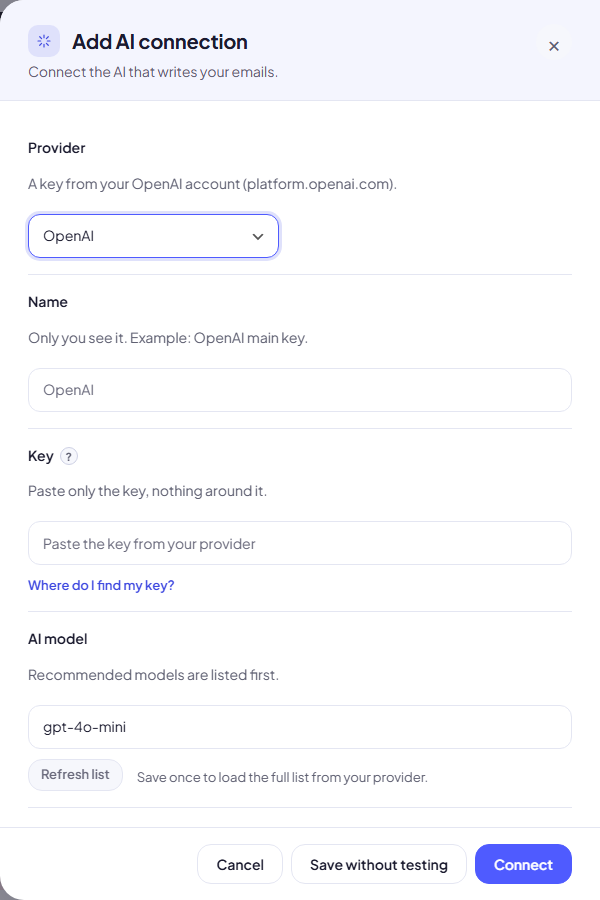
- Click Add AI connection. A panel opens on the right.
- Choose the Provider.
- Give it a Name only you see, for example OpenAI main key.
- Paste the Key: only the key, nothing around it. Where do I find my key? opens your provider’s key page.
- For Custom only: enter the Server address, for example
https://api.together.xyz/v1, and leave Supports tool calling on unless connecting fails. - Check the AI model. A sensible default is filled in for each provider (for example
gpt-4o-minifor OpenAI). You can type any model name your provider offers. - Optional: set a Monthly token budget (see below).
- Click Connect. We save the connection and send a tiny test request.
When the test works you see Connected to OpenAI using gpt-4o-mini. Ready to write emails. and the panel closes. If it fails, the panel stays open with one plain sentence about what went wrong, for example that the provider did not accept the key.
Save without testing keeps the connection without the test request. Use Test on its row later.
Note: Your plan sets how many AI connections you can add: Free 1, Starter 2, Growth 5, Agency unlimited.
Pick a model from your provider’s list
After the first save, open Edit on the connection. Under AI model, start typing to pick from your provider’s models; Refresh list loads the latest list. Recommended models are listed first.
The connection row
Each connection shows its number in the order, its name and a health label:
| Label | Meaning |
|---|---|
| Working | The last requests worked. |
| Resting | The provider said “too many requests”. It is used again after a short rest; the next connection writes meanwhile. |
| Needs attention | Something is not quite right; open Edit for details. |
| Not working | Requests fail. The sentence under it says why, for example a wrong key. |
| Turned off | You switched it off. |
| Turned off after problems | It kept failing and was switched off for you. Fix it, then turn it on again. |
| Not checked yet | No request has been made yet. Click Test. |
Below it: This month: 1,240 requests · 2.1M tokens of 5M budget · last used 4 mins ago.
Row buttons: the on/off switch, Test, Edit, the bin (delete, after a confirmation) and the up and down arrows.
Order and automatic fallback
The first working connection is used. When it fails or is busy, the next one takes over, so emails keep being written even if one provider has a bad moment.
- Drag a connection by its handle to change the order, or use the up and down arrows. The top one is tried first.
- Turn a connection off to skip it without deleting it.
Tip: Add a second provider as a backup, for example OpenAI first and Claude second. If one provider has an outage, your campaigns keep running.
Monthly token budget
The Monthly token budget caps how many tokens this key may use per calendar month. Leave it empty for no budget.
- When the budget is used up, the next connection writes.
- About 4 characters make one token. Roughly, 2,000,000 tokens is about 2,500 emails.
- A thin bar on the row shows how much of the budget is used.
Change or remove the key
Open Edit. The saved key shows only its last four characters. Leave the field empty to keep it, paste a new one to replace it, or click Remove key. Delete a connection with the bin icon; if it was your last one turned on, Swift Pilot takes over (when you have credit).
Common mistakes
- Pasting extra text with the key (quotes, “Bearer”, spaces). Paste only the key.
- A key with no billing set up at the provider. Most providers need a payment method before the key works.
- A model name your account cannot use. Pick from the list after the first save.
Next step
Fine-tune how every email is written: AI settings.
Still stuck? Open a ticket from Swift Support in the app, or contact us.