Review AI emails before sending
Approve, edit, rewrite or skip each email the AI wrote, one by one or in bulk, before anything is sent.
On this page
Who this is for: anyone whose campaign uses I approve each email first (the default), which is every new user’s best choice.
In review mode, each email the AI writes waits for you. Nothing is sent until you approve it. The count of waiting emails shows next to Review emails in the sidebar.
Where to review
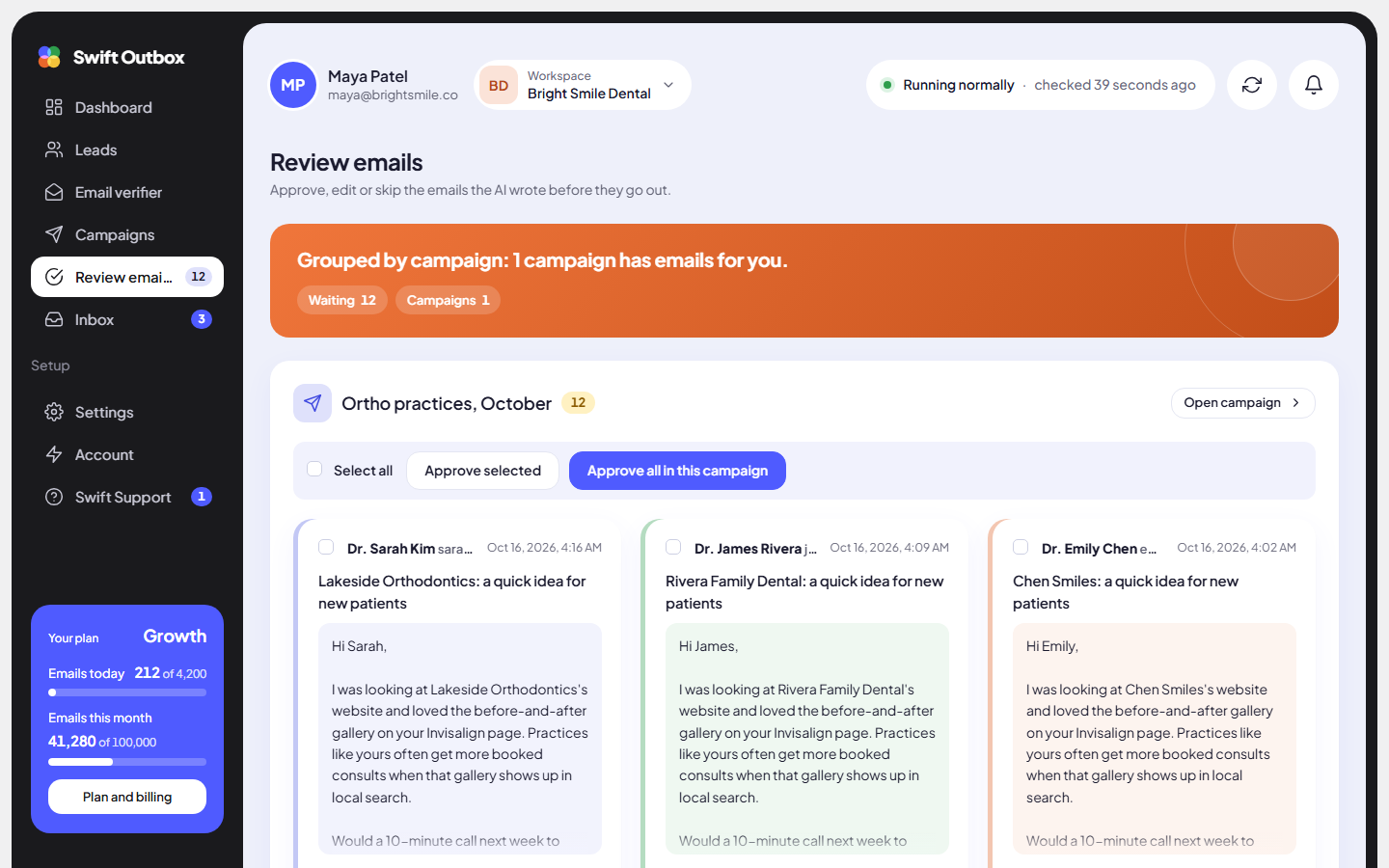
- Review emails in the sidebar: every waiting email, grouped by campaign, most waiting first. Each group shows up to 20 emails and a link such as See 12 more emails in this campaign.
- A campaign’s own review list: click waiting for approval on the campaign page, or Review emails in the campaign list. This view adds a Search by email box and pages of 25.
Each email card
Every card shows the lead’s name and address, when it was written, the subject and the body, with four buttons.
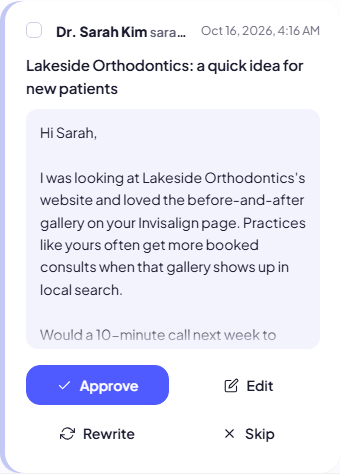
| Button | Shortcut | What happens |
|---|---|---|
| Approve | A | The email is scheduled and goes out within the campaign’s sending rules. Message approved and queued. |
| Edit | E | Opens the editor below the card. |
| Rewrite | R | The AI writes a new version. Rewrite queued; the message returns here when it is ready. |
| Skip | S | After you confirm, the email is not sent. Message skipped. |
Shortcuts work on the card that has focus. Click a card or press Tab to move between cards. After an action, focus moves to the next card, so you can press A, A, S, A down the list.
Edit an email
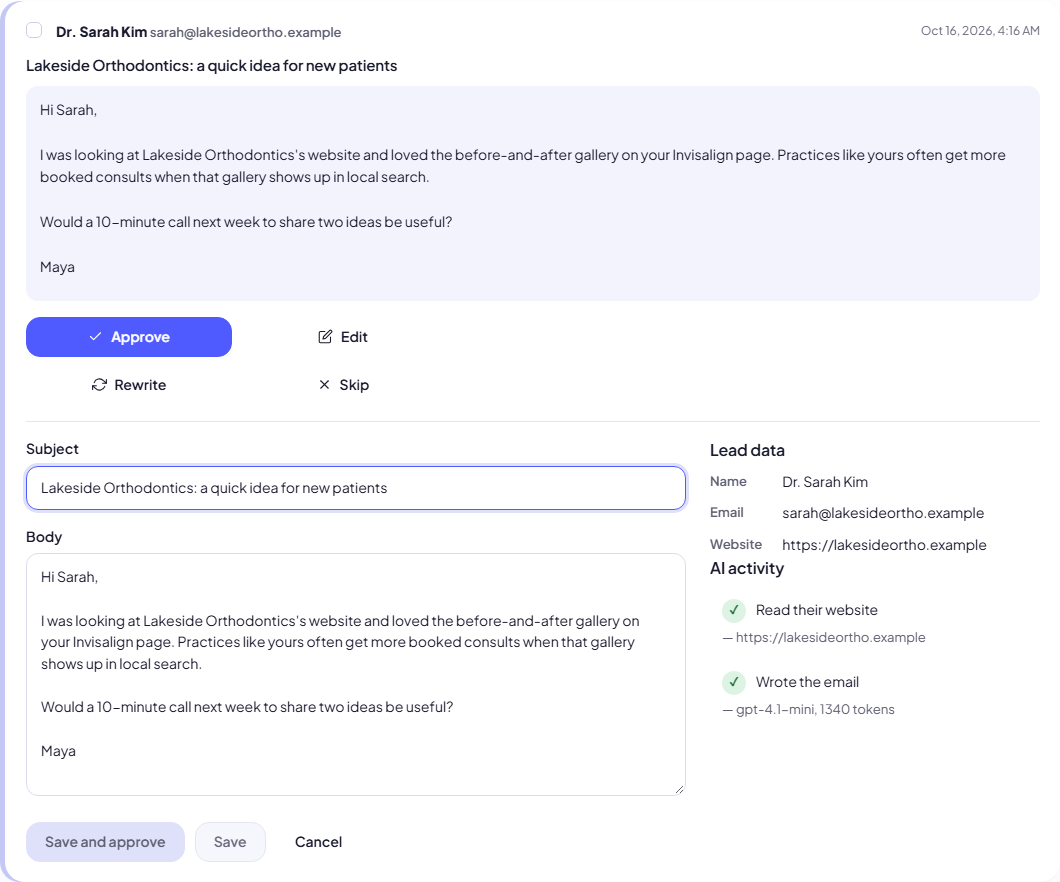
- Click Edit (or press E).
- Change the Subject (up to 255 characters) and the Body.
- On the right, check Lead data (name, email, website, the account it sends from) and AI activity (each step the AI took, such as reading the website and writing the email).
- Click Save and approve to save and schedule it, Save to keep it waiting, or Cancel (or press Escape) to close without saving.
The save buttons stay disabled until you change something.
Approve in bulk
- Tick the box on each card you want, or Select all.
- Click Approve selected. N messages approved and queued.
- Or click Approve all N (on the campaign view) or Approve all in this campaign (on the grouped page). Confirm: They will be scheduled and sent within your sending rules. Large batches are approved 100 at a time with progress such as Approved 200 of 340….
Tip: Read the first 10 to 20 emails one by one. When they are consistently good, approve the rest in bulk, or switch the campaign to Send automatically while it is paused.
When review is done
- On the campaign view: All caught up, Nothing is waiting for you.
- On the grouped page: Nothing is waiting for you, New emails show up here when a campaign asks you to approve each email first.
Rules worth knowing
- Approving needs the campaign to be Running or Paused. On a stopped campaign the app answers The campaign is stopped.
- Approved emails still respect the daily limit, days, window and waits. Approving 200 at once does not send 200 at once.
- You can rewrite an email that is already scheduled, as long as it is not being sent at that moment.
- A campaign in review mode does not finish while emails are waiting. Approve or skip the last ones.
Common mistakes
- Approving without reading the first batch. One bad instruction repeats in every email. Fix the instructions, then Rewrite the bad ones.
- Editing many emails by hand. If you are changing the same thing each time, change the campaign instructions instead (pause, edit, save, then rewrite).
- Skipping instead of fixing the lead. A skipped lead is not emailed by this campaign at all.
Next step
Handle the answers: Use the inbox.
Still stuck? Open a ticket from Swift Support in the app, or contact us.