AI settings
Set instructions that go into every email, and tune the AI wait time, maximum email length and creativity for all connections.
On this page
Who this is for: anyone who wants every email, in every campaign, to follow the same house rules.
Open Settings, AI connections and scroll to Settings for every connection. These settings are used by whichever connection writes the email, Swift Pilot included.
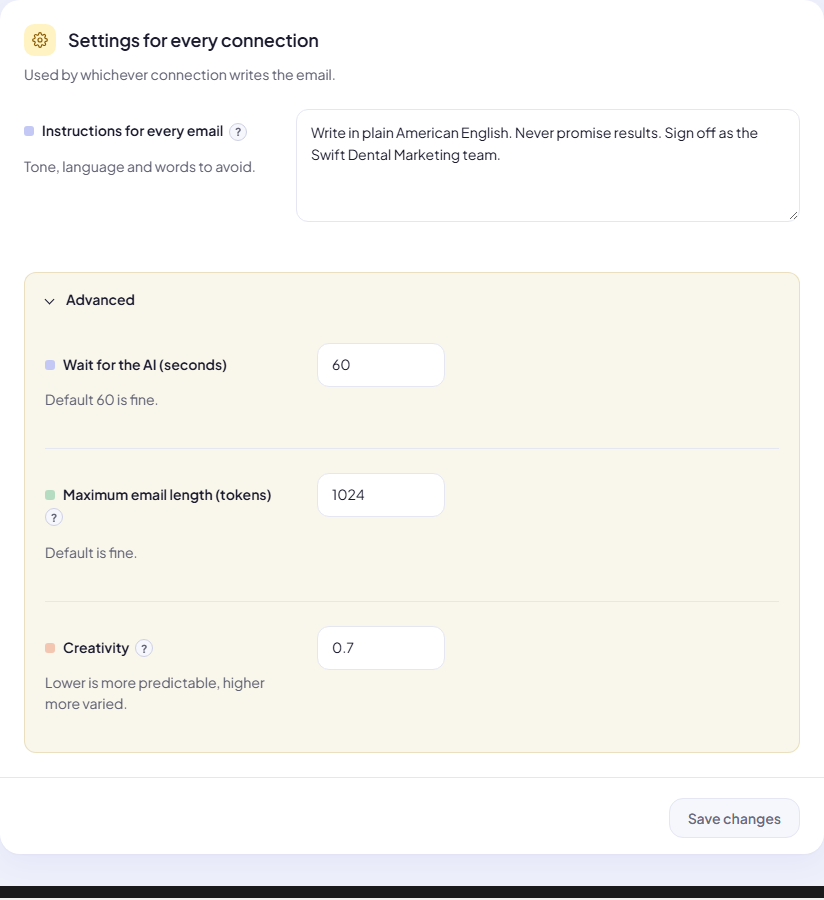
Instructions for every email
A text box (up to 4,000 characters) that is added to every campaign’s instructions. Use it for things that never change:
- Tone and language: “Write in plain American English. Friendly, never pushy.”
- Words to avoid: “Never use the words synergy, leverage or game-changer.”
- Promises you must not make: “Never promise results or rankings.”
- How to sign off: “Sign off as Dr. Lee’s team.”
Campaign-specific things (the offer, the ask) belong in the campaign. See Write subject and email instructions.
Advanced
Click Advanced to open three more settings. The defaults are right for almost everyone.
| Setting | Range | What it does |
|---|---|---|
| Wait for the AI (seconds) | 5 to 300 (default 60) | How long we wait for an answer before trying again or moving to the next connection. |
| Maximum email length (tokens) | 16 to 8,192 | Caps how long each AI answer can be. About 4 characters per token: 800 tokens is roughly 500 words. |
| Creativity | 0 to 2 | Lower is more predictable, higher more varied. 0 gives the same wording each time; 0.7 is a good balance for sales emails. |
Click Save changes. The button stays greyed out until you change something, and shows Saved. after saving.
Tips
Tip: Keep the global instructions short and absolute (“Never…”, “Always…”). Long style guides get diluted; three to six clear rules work best.
Warning: A very low Maximum email length cuts emails off mid-sentence. If emails end abruptly, raise it.
- Creativity above 1 often produces odd wording in sales emails. Stay between 0.5 and 0.9.
- If a provider is often slow and connections fall back too quickly, raise Wait for the AI to 90 or 120.
Next step
Decide how much of each lead’s website the AI reads: Website research.
Still stuck? Open a ticket from Swift Support in the app, or contact us.