Reply inboxes
Connect the mailbox that receives replies so they show in your Inbox, leads are marked as replied, and bounces are caught automatically.
Who this is for: everyone who sends campaigns. Without a reply inbox, replies still reach your normal mailbox, but the app cannot show them or stop follow-ups to people who answered.
A reply inbox is a mailbox the app checks for new replies, over IMAP. When someone replies to a campaign email, it appears in Inbox and the lead is marked Replied. While checking, the app also spots bounce messages and spam complaints and adds those addresses to your do-not-email list.
Connect a reply inbox
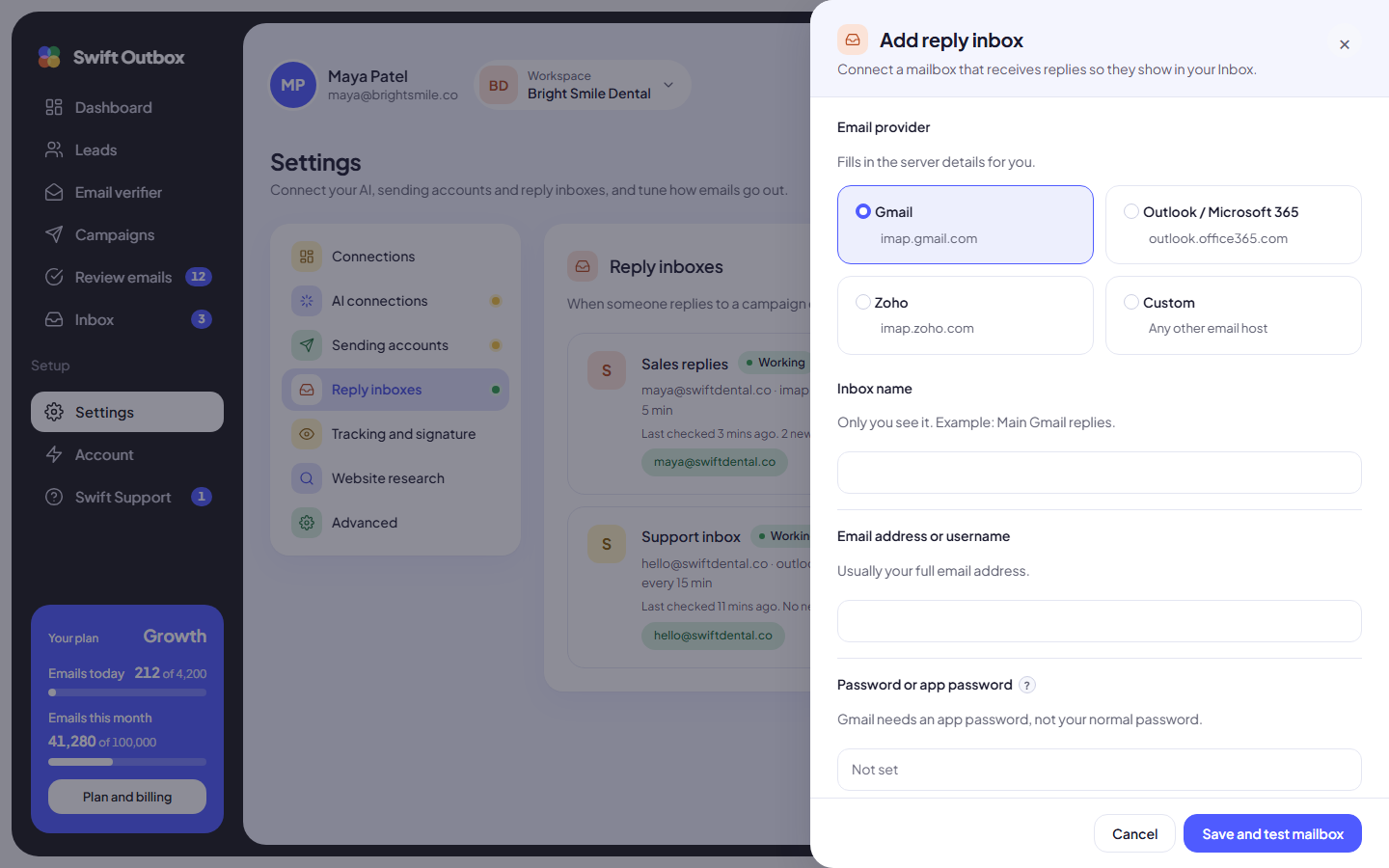
- Go to Settings > Reply inboxes and click Add reply inbox.
- Pick the provider: Gmail, Outlook / Microsoft 365, Zoho or Custom. All use port 993 with SSL; Custom asks for your host’s IMAP server.
- Inbox name: a label only you see, for example “Main Gmail replies”.
- Email address or username and Password or app password. The same app password as your sending account works. Gmail needs an app password, not your normal password.
- Folder: leave it as
INBOXunless replies go to another folder. - Check for replies every: 5, 10, 15, 30 or 60 minutes. The default is 5.
- Under Sending accounts whose replies land here, tick every sending account whose replies arrive in this mailbox.
- Click Save and test mailbox.
Saving also tests the login. The messages mean:
| Message | What to do |
|---|---|
| Saved and connected. Replies are checked every 5 minutes. | Nothing. You are done. |
| Saved, but there is no folder called… | Fix the Folder name. INBOX works for most mailboxes. |
| Saved, but we could not log in. | Check the server, email address and app password. |
Tip: The simplest setup is one reply inbox per sending account, using the same email address. If your sending accounts use Replies go to to send every reply to one shared address, connect that shared address once and tick all those accounts.
Day-to-day buttons
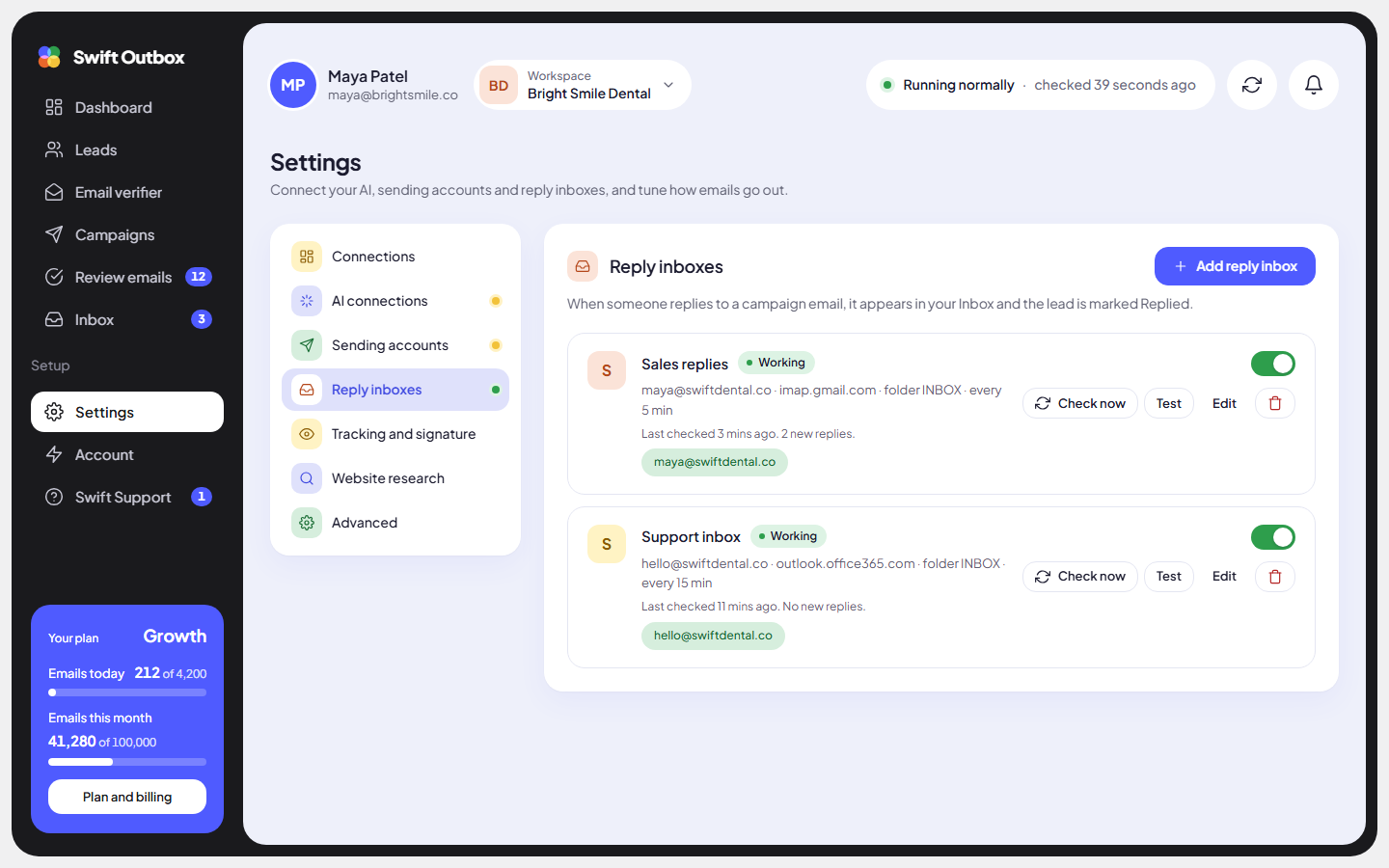
Each inbox row shows “Last checked” and how many new replies were found, plus:
- Check now: looks for replies right away. New replies appear in Inbox within a minute.
- Test: logs in and checks the folder, without changing anything.
- Edit and delete. Deleting stops new replies from showing; replies already found are kept.
- The toggle turns checking on or off.
Common mistakes
- No sending account ticked. The row says “Not linked to a sending account.” Edit the inbox and tick the right accounts.
- Replies filtered into another folder. If a mail rule moves replies out of
INBOX, set Folder to that folder name. - Changed password. After you change the mailbox password or revoke the app password, the row shows “We could not check this mailbox”. Edit it with the new app password.
Next step
Decide how fast your emails go out: Daily limits and sending windows.
Still stuck? Open a ticket from Swift Support in the app, or contact us.