Dashboard stats
What every tile, chart and card on the dashboard means and when to act on it.
On this page
Who this is for: anyone who opens the app and wants to know, in ten seconds, whether everything is working and what to do next.
The Dashboard is the first page after you log in. It refreshes itself every minute; the refresh button in the top bar reloads it now.
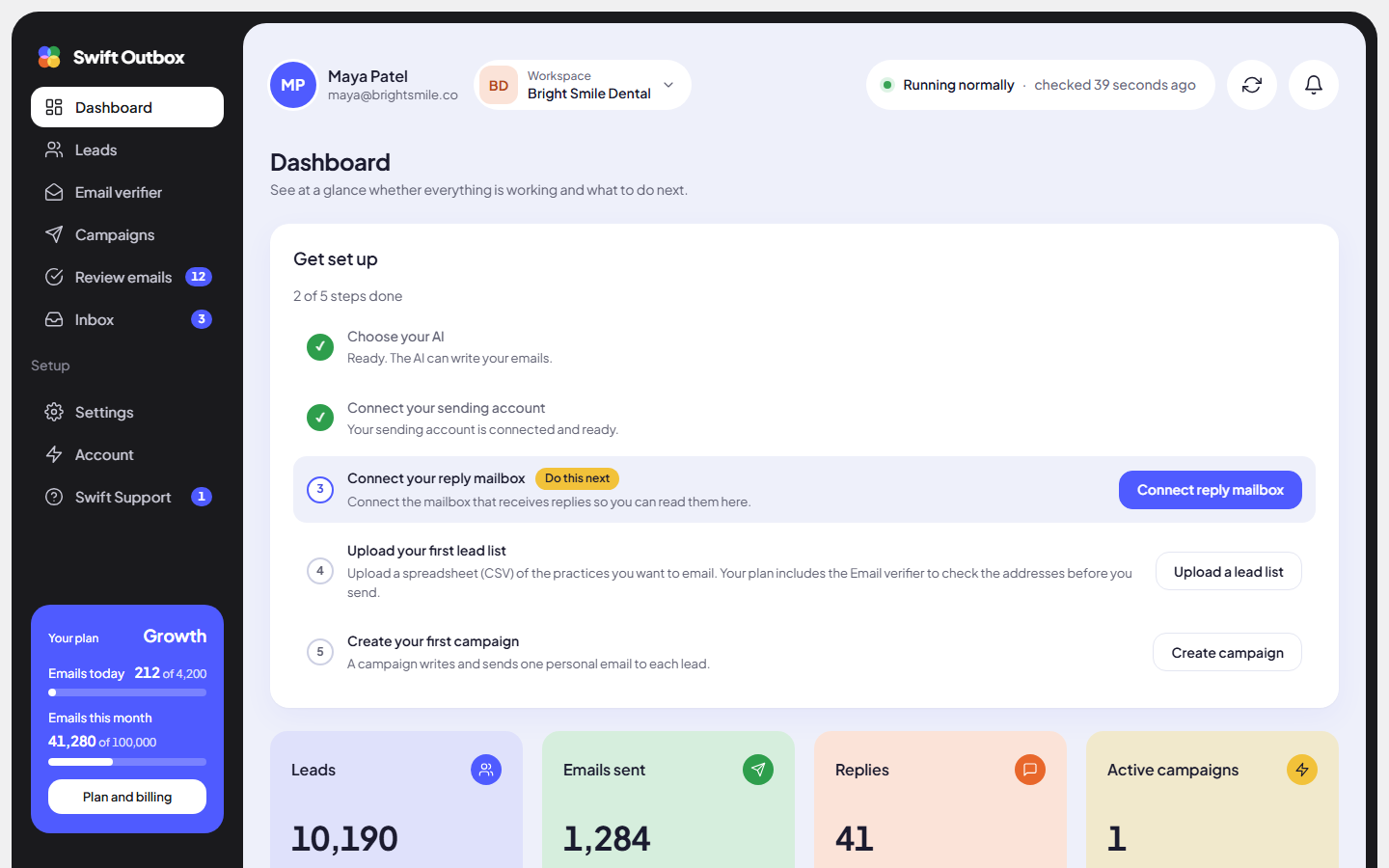
Get set up
Until setup is complete, a checklist at the top shows the steps done (for example 2 of 5 steps done) and marks the next one Do this next with its button: choose your AI (your own key or Swift Pilot), connect your sending account, connect your reply mailbox, upload your first lead list, create your first campaign. When all are done it disappears and the header shows Setup complete.
The first row of tiles
| Tile | Meaning |
|---|---|
| Leads | Everyone imported across all your lists. |
| Emails sent | Total emails sent by every campaign. |
| Replies | People who wrote back. |
| Active campaigns | Campaigns currently running, with N running, N paused below. |
The small line under Leads, Emails sent and Replies compares the last 30 days with the 30 days before (for example 12% vs previous 30 days), or says New in the last 30 days.
Emails sent and replies chart
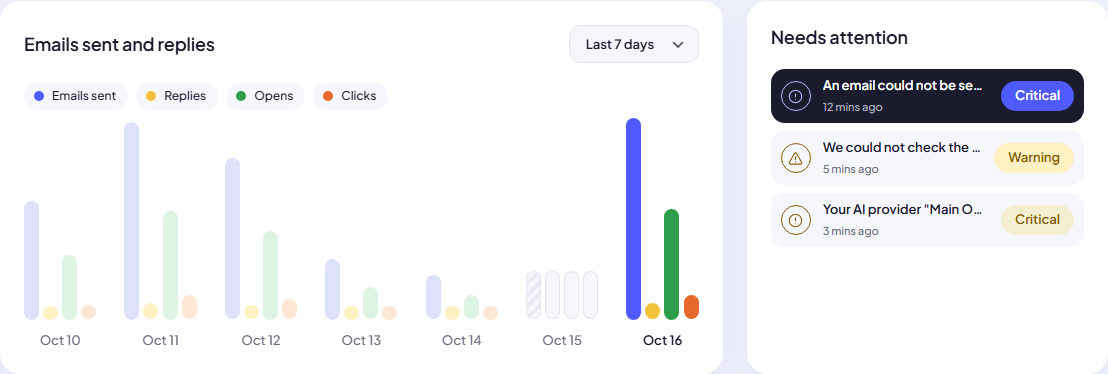
Bars for Emails sent, Replies and, when tracking is on, Opens and Clicks. Pick the range in the top right (for example Last 7 days). If tracking is off, the chart links to Settings > Tracking and signature.
Needs attention next to it lists open problems, most serious first, each linking to its fix. With nothing open it shows Everything is running. See Notifications, alerts and messages.
The second row of tiles
| Tile | Meaning | Act when |
|---|---|---|
| Sent today | Emails sent since midnight. | It stays at 0 during your sending window. |
| Waiting for your approval | Emails ready for you to check before they send. Click to review. | It is above 0. |
| Scheduled | Emails written and waiting to go out. | It keeps growing while Sent today stays low (check sending accounts). |
| Not sent | Emails your sending account could not deliver. | It says emails need a retry. |
Your campaigns
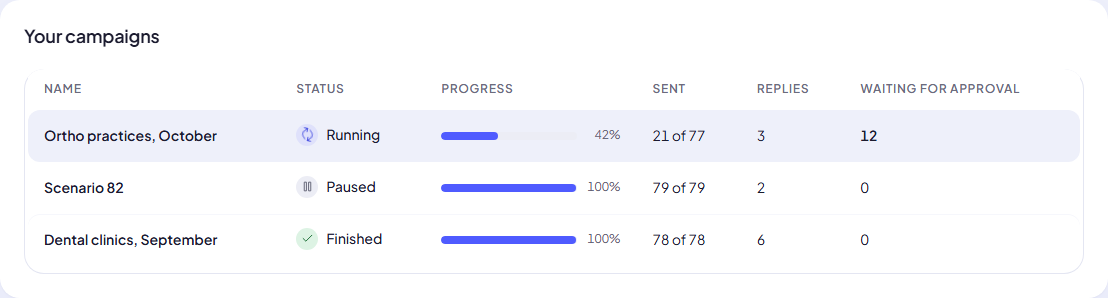
Each campaign with its status, progress, Sent (of the leads it will email), Replies and Waiting for approval. Click a name to open it.
Background processing and recent activity
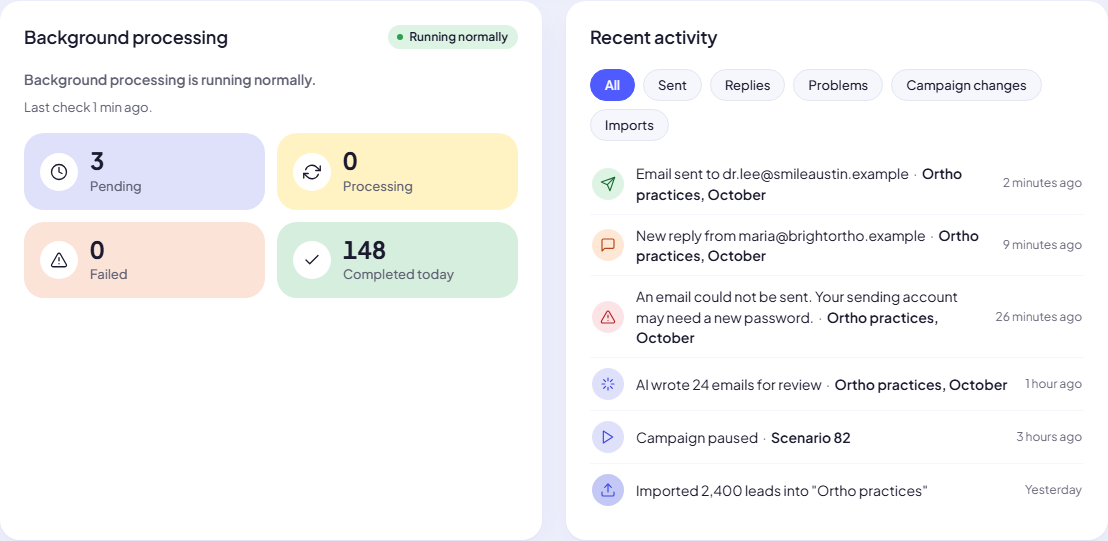
Background processing shows whether the servers that write and send are working (Running normally, Running late, Stopped, Nothing to do or Not checked yet), when they last checked, and four counts: Pending, Processing, Failed and Completed today.
Recent activity lists the latest events across campaigns, with filters for Sent, Replies, Problems, Campaign changes and Imports.
A daily routine that takes two minutes
- Look at Needs attention. Fix anything red first.
- Click Waiting for your approval if it is above 0 and clear the queue.
- Open the Inbox if the sidebar shows unread replies.
- Glance at Not sent. If it grows, check the campaign’s Scheduled emails for the reason.
Next step
Ready to grow? Start with the Deliverability playbook.
Still stuck? Open a ticket from Swift Support in the app, or contact us.