The do-not-email list
Block single addresses or whole domains from every campaign, import a block list, and understand who gets added for you.
On this page
Who this is for: anyone who must make sure certain people or companies never get an email, such as existing clients, competitors or people who asked to be left alone.
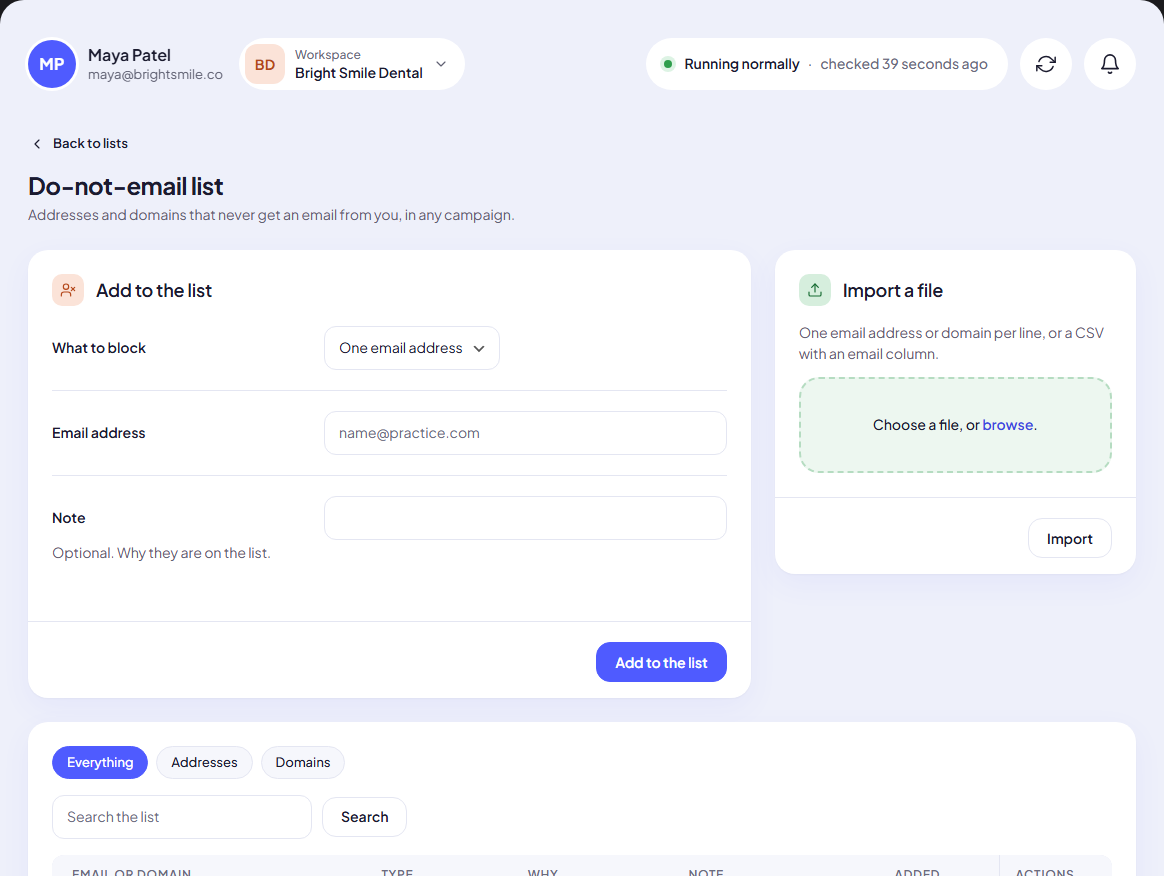
The do-not-email list (also called a suppression list) holds addresses and domains that never get an email from you, in any campaign, in any list.
Open it from Leads with the Do-not-email list button at the top.
Who is added for you
You do not have to maintain this list by hand. Entries are added automatically, and the Why column says how each one got there:
| Why | Added when |
|---|---|
| Unsubscribed | The person clicked unsubscribe or asked to stop. |
| Bounced | An email to the address bounced. |
| Marked as spam | The person reported your email as spam. |
| Added by you | You added it with the form. |
| Imported | It came from a file you imported. |
Block one address or a whole domain
- Under Add to the list, choose What to block: One email address or A whole domain.
- Type the address (
name@practice.com) or the domain (practice.com). A leading@on a domain is fine. - Optional: add a Note saying why, for your team.
- Click Add to the list. You see … will never be emailed.
Blocking a domain skips everyone at that domain, so brightsmiles.com covers sarah@brightsmiles.com, info@brightsmiles.com and every other address there.
Tip: Block the domains of your existing clients and partners before your first campaign. One domain entry protects every address at that company.
Import a block list
- Under Import a file, click browse and choose a CSV or TXT file.
- Put one email address or domain per line. In a CSV, the first column is read; a header word like email is simply skipped.
- Click Import. You see Added N. and, when some lines were not used, N lines were skipped (already listed or not valid).
Each line is sorted out for you: anything with an @ becomes an address, anything else a domain.
What blocking does to your leads
- Leads already imported that match a new entry are marked Skipped right away, as long as no email has been written for them yet.
- Lists you import later check the list during the import: matching leads come in as Skipped.
- Campaigns never email a skipped lead.
Find and remove entries
- Use the chips Everything, Addresses or Domains, or type in Search the list and click Search.
- Click Remove in an entry’s row and confirm. You see Removed. Campaigns can email this again.
When you remove an entry, leads that were skipped only because of it go back to Not started, so a campaign can email them again. Leads still covered by another entry (for example their whole domain) stay skipped.
Warning: Be careful removing Unsubscribed or Marked as spam entries. Emailing someone who asked you to stop breaks anti-spam law in many countries and hurts your sender reputation.
Common mistakes
- Typing a full URL as a domain. Enter
practice.com, nothttps://www.practice.com/contact. - Expecting a removed lead to stay out. Removing a lead from a list does not block the person. If they appear in a later upload they can be emailed. Add them here instead.
Next step
Learn how to prepare files that import cleanly and convert well: Prepare a great lead file.
Still stuck? Open a ticket from Swift Support in the app, or contact us.