Security and two-step login
Change your password, turn on two-step login with an authenticator app, save recovery codes and log out devices you do not recognise.
On this page
Who this is for: every user. Your account holds your mailbox connections and leads, so it is worth two minutes to protect it.
Go to Account > Login and security.
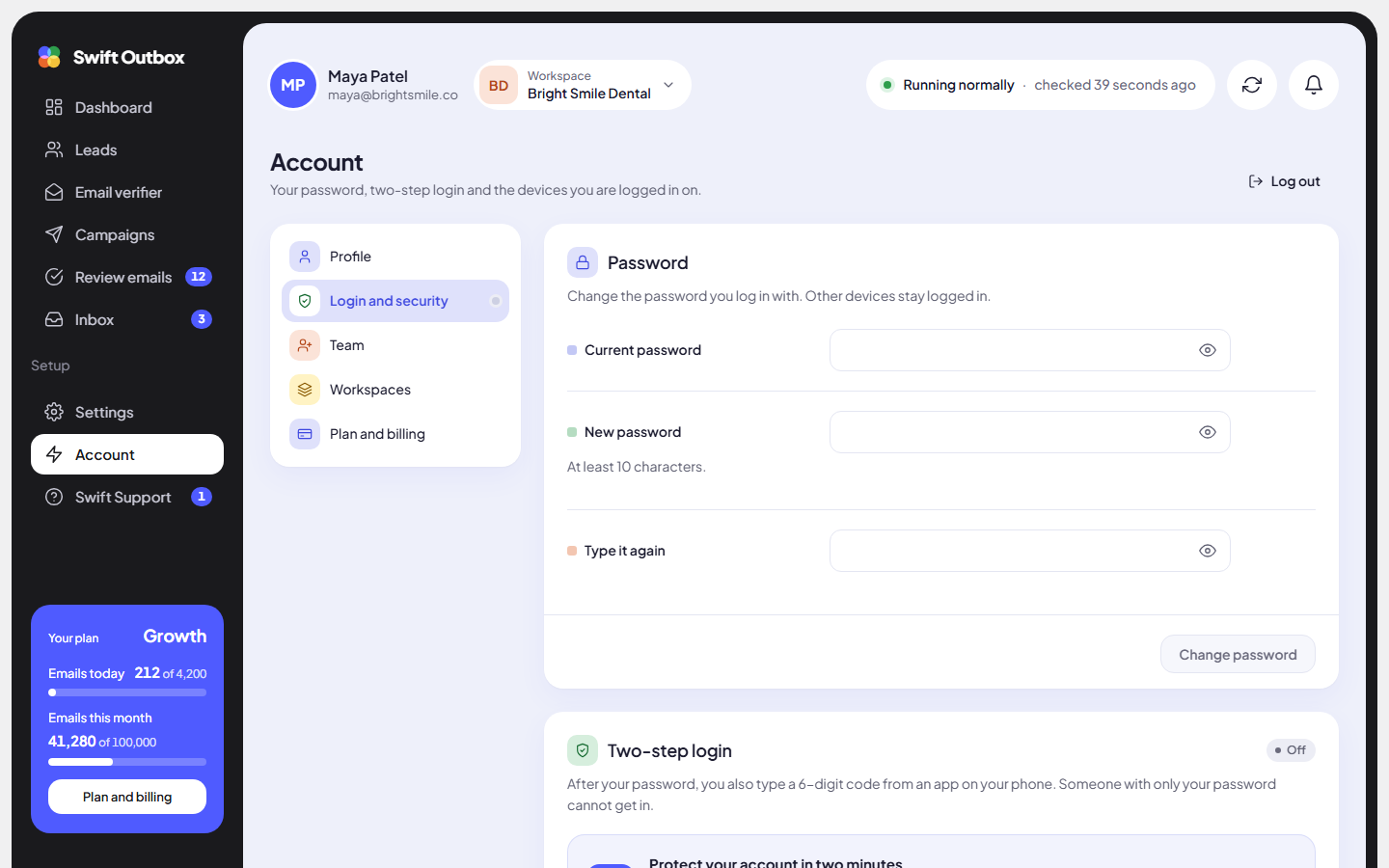
Turn on two-step login
With two-step login, after your password you also type a 6-digit code from an app on your phone. Someone who only has your password cannot get in. It works with Google Authenticator, Microsoft Authenticator, 1Password and any other authenticator app.
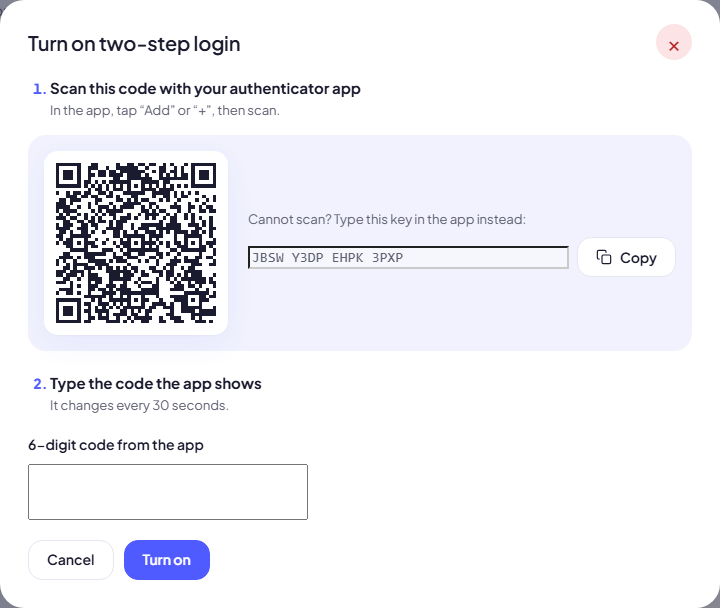
- Click Turn on two-step login.
- In your authenticator app, tap Add or +, then scan the QR code. Cannot scan? Type the Setup key shown next to it into the app instead.
- Type the code the app shows into 6-digit code from the app. It changes every 30 seconds.
- Click Turn on.
- Save your recovery codes. Click Download or Copy all, store them somewhere safe such as your password manager, then click I saved my codes.
You will see “Two-step login is on.” From now on, the login page asks for a code after your password.
Warning: You will not see your recovery codes again, and they are your way back in if you lose your phone: at the login code step, type one of them instead of the app code (each code works once). Store them before you click I saved my codes. Lost the codes too? Email support from the address you log in with.
Change your password
- In the Password card, enter Current password, New password (at least 10 characters) and Type it again.
- Click Change password.
Other devices stay logged in. To log them out too, use Log out everywhere else below.
Forgot your password? On the login page click Forgot your password?, enter your email and use the link we send. It works for 1 hour.
Check where you are logged in
The Where you are logged in card lists your devices, marked This device or with when each was last active.
- Click Log out on any device you do not recognise.
- Click Log out everywhere else to sign out every other device at once.
Tip: If you see a device you do not recognise, log it out, then change your password straight away.
Turn two-step login off
Click Turn off, type a code from your app to confirm, and click Turn off again. If your team requires two-step login, you lose access to the team’s pages until you turn it back on.
Common mistakes
- Skipping the recovery codes. A new phone without a backup locks you out.
- Reusing a password from another site. Pick one you use nowhere else; a password manager makes this easy.
- Sharing one login with a colleague. Invite them as a team member instead, with their own login and role.
Next step
Know how to get help fast: Swift Support tickets.
Still stuck? Open a ticket from Swift Support in the app, or contact us.