Workspaces
Use a separate workspace per brand or client, each with its own leads, campaigns, connections and time zone, and switch between them.
On this page
Who this is for: agencies and teams running outreach for more than one brand or client. Free and Starter include 1 workspace, Growth 3 and Agency 25.
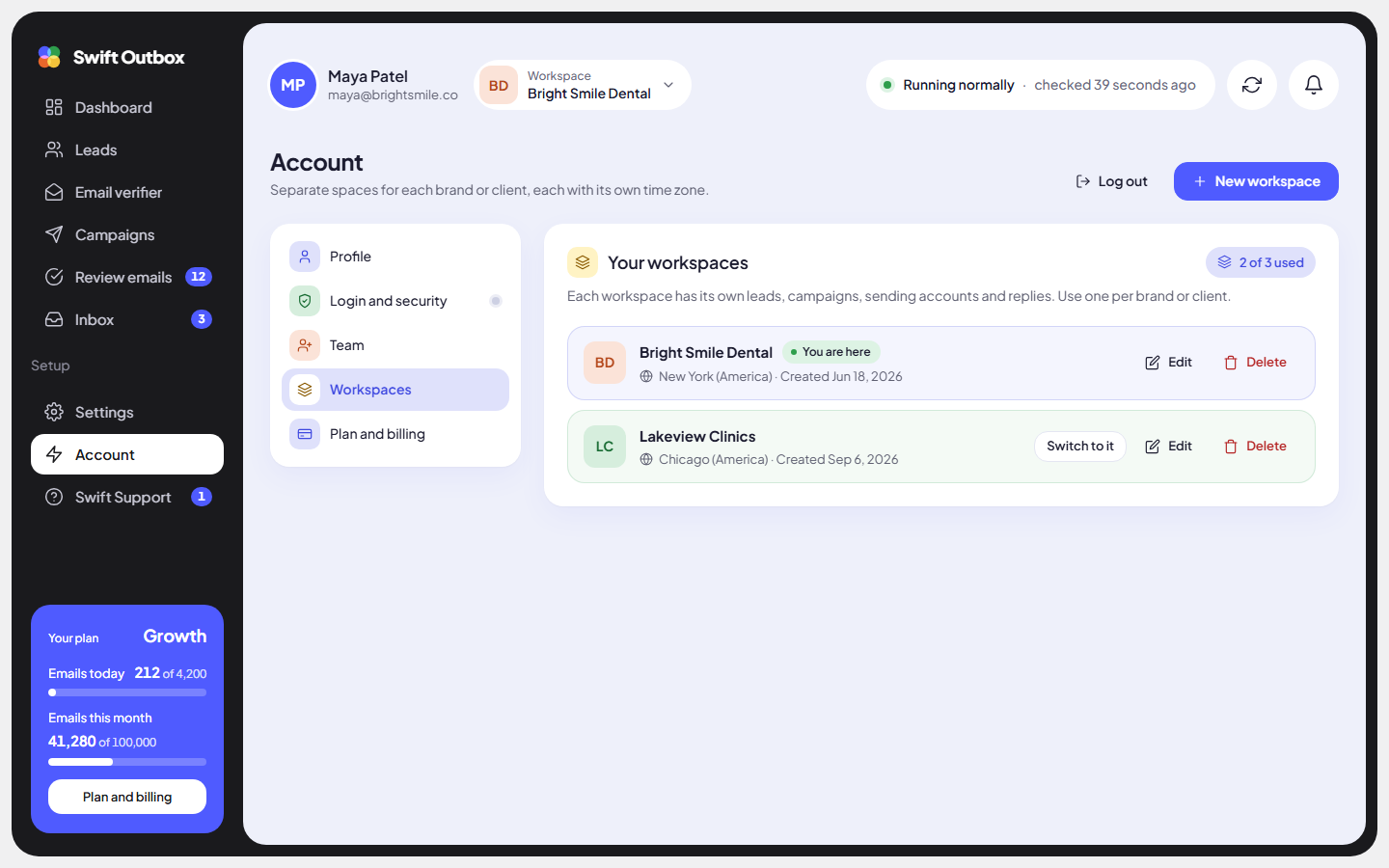
A workspace is a separate space with its own leads, campaigns, sending accounts, reply inboxes, replies and do-not-email list. Nothing is shared between workspaces, so one client’s leads never end up in another client’s campaign.
Go to Account > Workspaces.
Create a workspace
Admins can do this.
- Click New workspace.
- Enter a Name, such as the client’s name.
- Pick the Time zone. Sending hours and reports use it.
- Click Create workspace. You will see that it is ready, and you can switch to it from the top bar.
If you are using every workspace your plan includes, the button opens the upgrade dialog instead.
Switch workspace
- From the top bar: click the Workspace box next to your name and choose one under Switch workspace.
- From Account > Workspaces: click Switch to it on the row. The current one shows You are here.
Everything you see, from Dashboard to Inbox, belongs to the current workspace.
Tip: Name workspaces after the client or brand, not after a campaign. Campaigns come and go; the client’s mailboxes and do-not-email list stay.
Edit or delete a workspace
- Edit (admins): change the name or time zone.
- Delete (owner only, and only when you have more than one workspace): confirm with Delete workspace.
Warning: Deleting a workspace removes its leads, campaigns, emails and replies for good. This cannot be undone.
Who sees which workspace
Each team member sees either all workspaces or only some. Set this per person with Access on the Team page.
Common mistakes
- Setting up a new sending account in the wrong workspace. Check the workspace name in the top bar before adding connections.
- Expecting the do-not-email list to carry over. Each workspace has its own. Import shared blocks into each one.
Next step
Protect your login: Security and two-step login.
Still stuck? Open a ticket from Swift Support in the app, or contact us.