Open and click tracking
Turn open and click tracking on or off, set your own tracking domain, and understand the deliverability trade-off.
On this page
Who this is for: anyone who wants to know who opened or clicked, and anyone deciding whether tracking is worth it for cold email.
Tracking is set for the whole workspace in Settings > Tracking and signature. Both kinds are off until you turn them on.
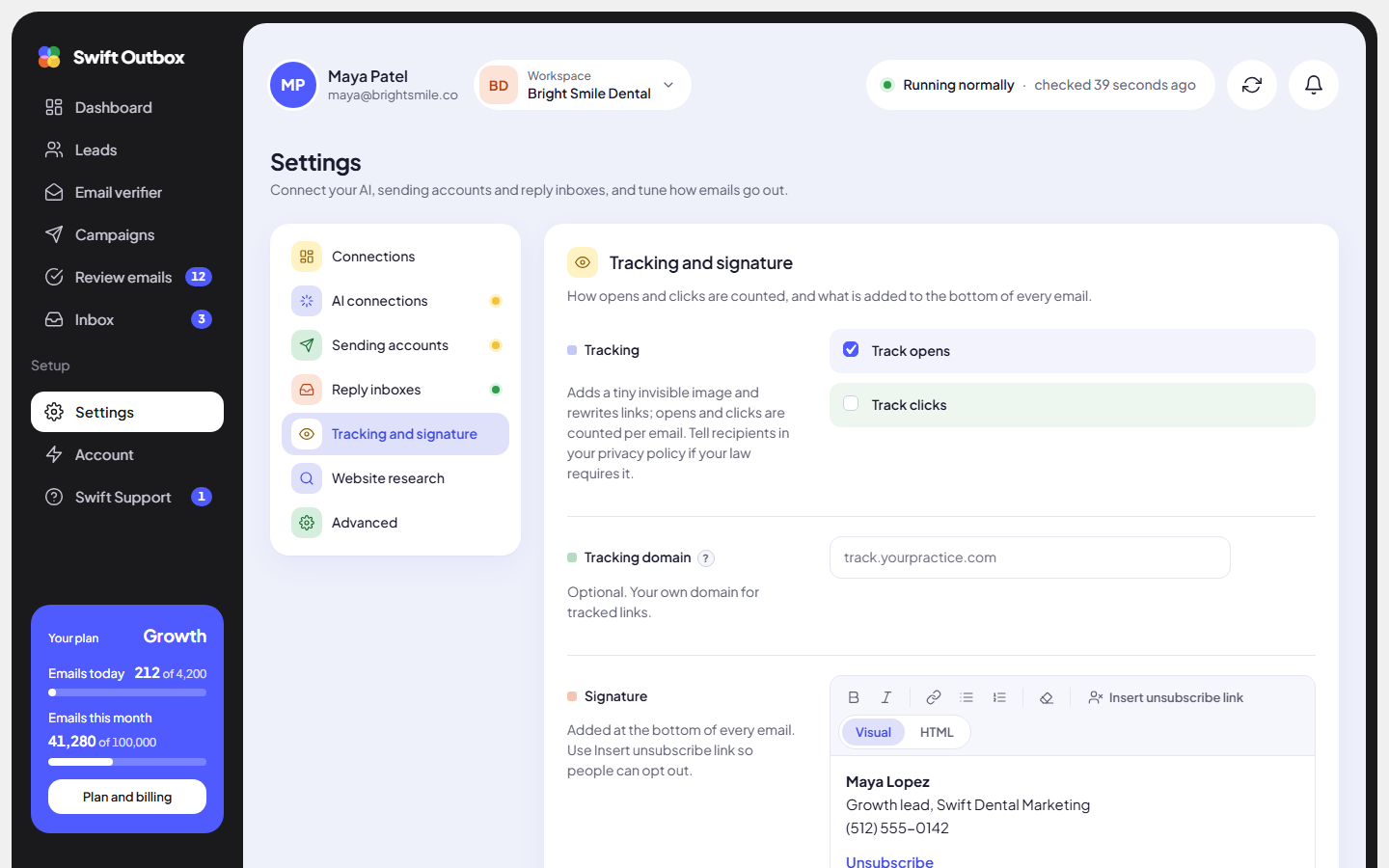
How tracking works
- Track opens adds a tiny invisible image to each email. When the email is opened and the image loads, the open is counted for that email.
- Track clicks rewrites the links in your email so a click passes through our tracking server first, then goes on to your link. Each click is counted for that email.
Note: Click tracking is part of the Growth plan and higher. On other plans the setting shows Higher plan with a See plans button. Opens are not perfectly accurate: some email apps block images (no open counted) and some security scanners open every email (an open counted that no person made).
Turn tracking on
- Go to Settings > Tracking and signature.
- Tick Track opens, Track clicks, or both.
- Save. You will see “Saved. New emails use these settings.” Emails already sent are not changed.
Use your own tracking domain
By default, tracked links and the open image use our address. A tracking domain makes them use a subdomain of yours, such as track.yourcompany.com, which looks more trustworthy to people and to spam filters.
- At your DNS host, create a CNAME record for the subdomain (for example
track) pointing at our tracking server. Ask Swift Support for the exact target to use. - Wait for DNS to update (up to 48 hours).
- In Tracking domain, type the subdomain without
https://, for exampletrack.yourcompany.com, and save.
The Tracking domain field is only available while at least one kind of tracking is on.
Warning: Enter the tracking domain only after the CNAME record works. The app does not verify the record, so a missing or wrong record breaks every tracked link in new emails.
Should you track cold email?
Tracking makes emails slightly more likely to be filtered: an invisible image and rewritten links are both signals spam filters look at. Many experienced senders leave tracking off for the first email and judge campaigns by replies, which the app always counts without any tracking.
Tip: If you only want one, choose replies over opens. Turn on click tracking only when the email has a link that matters, such as a booking page.
Tracking may also need a mention in your privacy policy, depending on the laws where you and your leads are.
Common mistakes
- Typing
https://into Tracking domain. Enter only the host name, liketrack.yourcompany.com. - Setting the tracking domain before the CNAME exists. Tracked links will not work until it does.
- Judging a campaign by open rate. Opens are noisy. Replies tell you far more.
Next step
Make sure people can opt out, and that you never email them again: Unsubscribe and the do-not-email list.
Still stuck? Open a ticket from Swift Support in the app, or contact us.