Start, pause, stop and restart a campaign
What each campaign control does, what happens to queued emails, and when to use pause instead of stop.
On this page
Who this is for: anyone running a campaign who needs to control it safely.
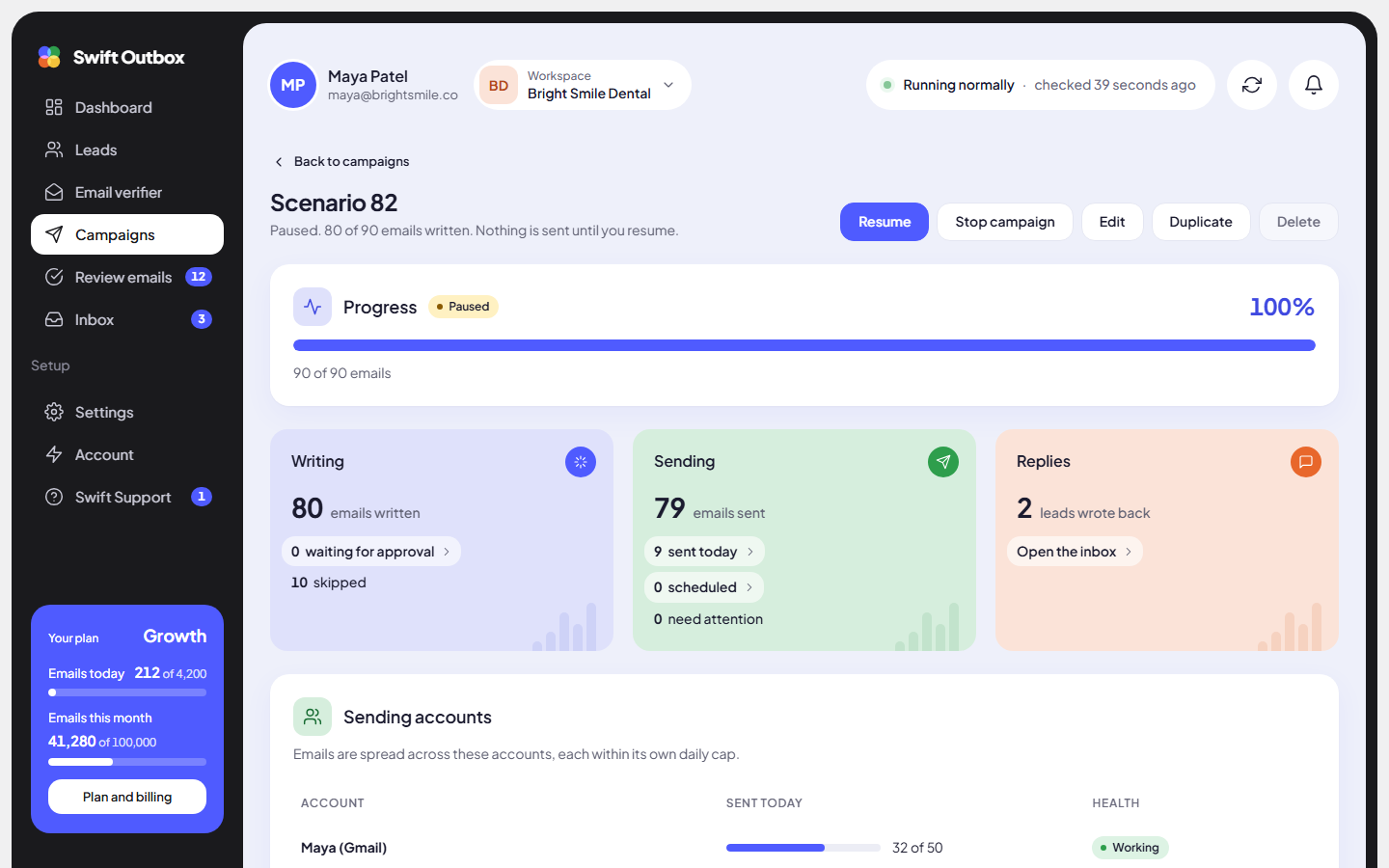
The buttons in the top right of a campaign page change with its status. You only ever see the ones that make sense right now. The same pause, resume and restart actions are in the Actions column of the campaign list.
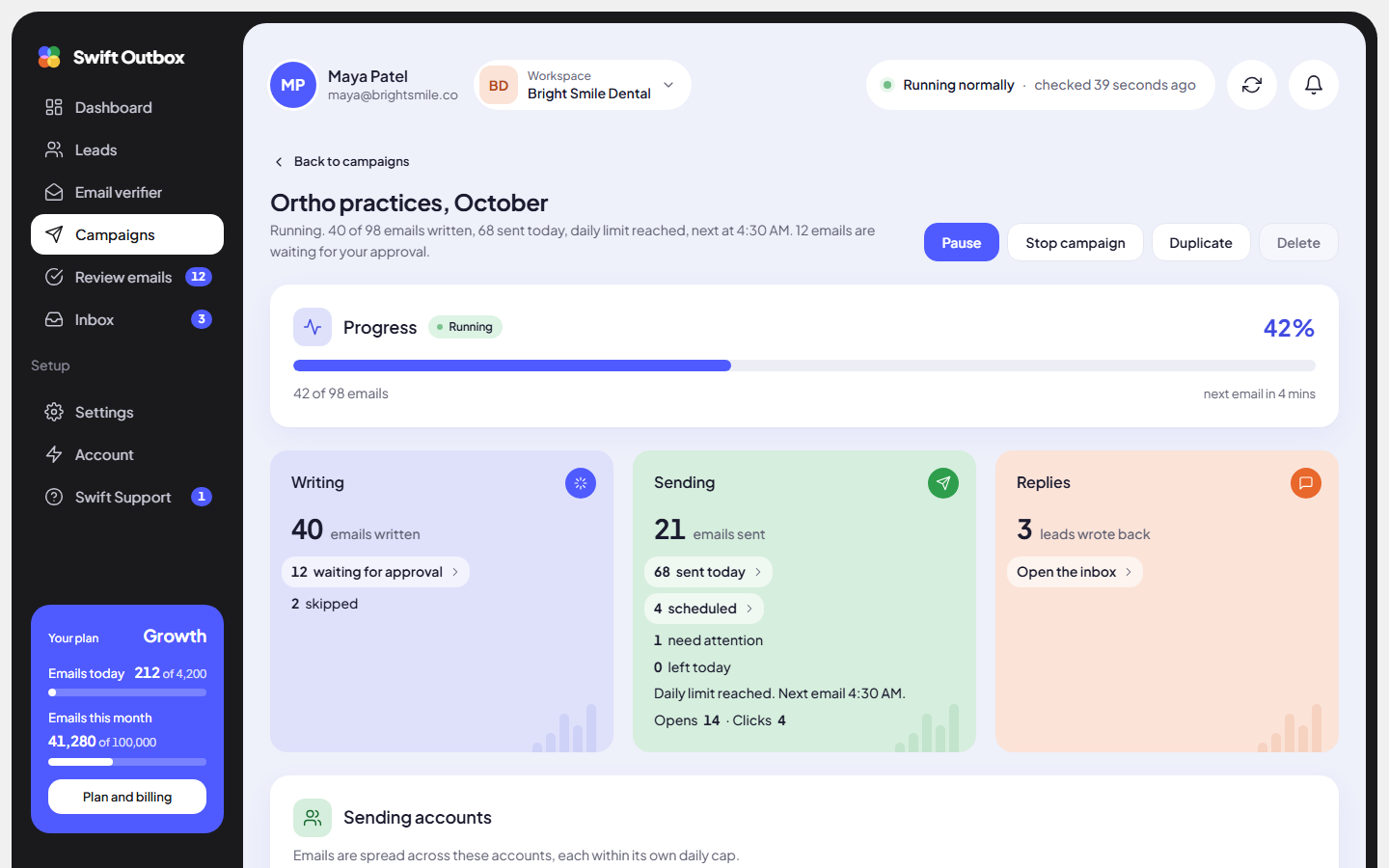
Start
- Finish the wizard and click Start campaign on the Review step, or open a draft and click Start campaign in the header.
- The campaign shows Getting ready for a moment, then Running.
- You see Campaign started. You can leave this page; it keeps running. Everything runs on our servers, so you can close the browser.
Schedule instead: on the Review step click Schedule campaign, pick a Start on date and time and click Schedule. The campaign shows Scheduled. Starts on date. If the scheduled start fails, the schedule is cleared and the campaign stays a draft with Scheduled start failed.
The start can fail with Stopped by a problem and one of these reasons:
| Reason | Fix |
|---|---|
| No AI provider configured | Connect an AI key in Settings > AI connections, or top up Swift Pilot credit. Then duplicate the campaign and start the copy. |
| No eligible leads | Every lead was skipped, already emailed, or filtered out by Email verification. Check the list and the verification results. |
Pause and resume
- Click Pause. You see Campaign paused.
- While paused, nothing is written and nothing is sent. Scheduled emails wait.
- You can still change the sending rules (Edit) and the instructions (on the campaign page).
- Click Resume. You see Campaign resumed. Writing starts again, and emails that were due during the pause are spread out again from now, so they do not all go out in one burst.
Note: The app also pauses a campaign by itself when too many emails bounce or are marked as spam. The reason shows in red at the top of the campaign page, for example Paused automatically: 3 of 40 emails bounced. Clean the list (verify addresses) before resuming, or your mailbox reputation will suffer. Fix the cause before you click Resume.
Stop
- Click Stop campaign.
- Confirm: No more emails will be written or sent. Emails already sent are not affected. You can restart the campaign later.
- Unsent work is cancelled and the report is saved.
Use Pause when you want to come back soon with the same emails. Use Stop when you want the campaign to end.
Restart
- Open a stopped campaign and click Restart campaign.
- Confirm: It continues with the leads that have not been emailed yet. Leads who already received an email are not emailed again.
- You see Campaign restarted. Emails that were cancelled by the stop are written again.
Restart runs the same checks as a start, including your plan’s limit of active campaigns.
Duplicate and delete
- Duplicate makes a new draft with the same settings, named “name (copy)”, without a schedule. You land in its setup. Change the lead list before starting it: the original list may still be in use.
- Delete is available for drafts and for stopped, finished or failed campaigns. The confirmation reads: Delete “name”? Its emails, schedule and report are removed for good. Your lead list stays.
What happens to a lead who replies
As soon as a reply is picked up from your reply inbox, that lead is marked Replied, any email still waiting for them is cancelled, and the campaign’s reply count goes up. Out-of-office and other automatic replies are ignored and do not stop outreach.
Common mistakes
- Stopping when you meant to pause. A stop cancels scheduled emails; a restart writes them again, which costs AI calls.
- Resuming an auto-paused campaign without fixing the list. It will pause again at the next bounce over the threshold.
- Clicking Start twice. If the campaign is already running the app answers with the actions it allows now; just refresh.
Next step
Learn to read the numbers: Campaign page and report.
Still stuck? Open a ticket from Swift Support in the app, or contact us.