Delete your account
Download a copy of your data, then delete your account, with a 14-day window to change your mind.
On this page
Who this is for: anyone who wants to close their Swift Outbox login, and team owners who want to remove the whole team’s data.
Go to Account > Profile and find the Your data card.
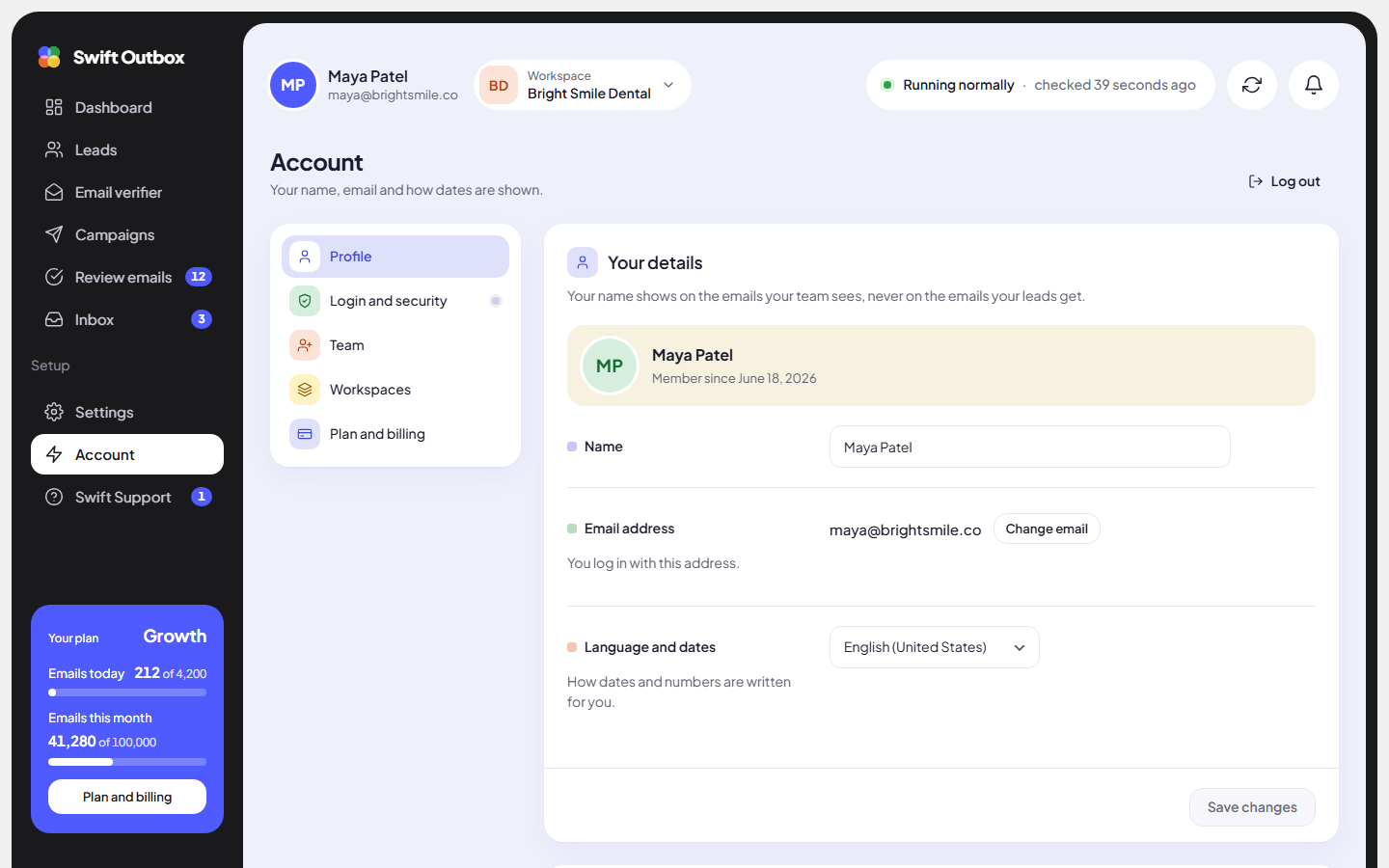
Before you delete: download your data
- In Your data, click Request download next to Download a copy of your data.
- We prepare a file and email a download link to your account email.
Note: Deleting your account does not cancel or refund a paid plan. Purchases are final. See Plans, credits and upgrades.
Delete your account
- In Your data, click Delete account.
- Read the dialog Delete your account?.
- Type your password under Type your password to confirm.
- Click Delete my account.
You are logged out straight away, and your login is closed after 14 days.
Warning: If you own the team, its workspaces, leads and campaigns are deleted too. To keep the team running without you, first hand ownership to someone else with Make owner… on the Team page.
Changed your mind?
Log in again any time within the 14 days and the deletion is cancelled. After 14 days the login is closed for good.
Other options
- Leave a team but keep the account? Ask an admin to remove you on the Team page.
- Stop sending without deleting anything? Pause your campaigns and turn off your sending accounts in Settings > Sending accounts.
- Remove one client’s data? Delete only their workspace.
Common mistakes
- Deleting as owner without handing over. Your whole team loses its data.
- Not downloading your data first. After the 14 days it cannot be recovered.
Next step
Back to the start: What Swift Outbox is, or browse all documentation.
Still stuck? Open a ticket from Swift Support in the app, or contact us.