Work with a list
Filter, search and sort through the leads of one list, see the email provider breakdown, pick columns and remove leads.
On this page
Who this is for: anyone who wants to look inside a list before a campaign uses it, find a lead, or remove leads that should not be emailed.
Open Leads, then click a list name. The page title is the list name, with the file name and upload date under it.
The buttons at the top
| Button | What it does |
|---|---|
| Back to lists | Returns to all lists. |
| Verify emails | Checks the addresses of this list. On the Free plan it carries a Paid plans label and explains the upgrade instead. See Verify a lead list. |
| Clean up | Removes leads by verification result. See Clean up a list. |
| Rename | Opens a small Rename list window. Type the name, click Save name. |
| Delete | Deletes the list and its leads, after a confirmation. Not possible while a campaign uses the list. |
| Create campaign with this list | Opens the campaign wizard with this list already chosen. |
Note: Team members with view-only access see the list but not the buttons that change it (verify, clean up, rename, delete, remove).
The summary cards
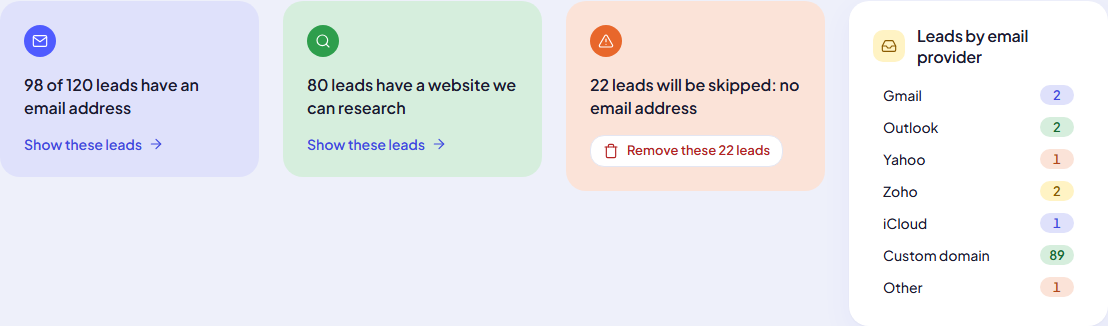
- “N of M leads have an email address”: click Show these leads to filter to them.
- “N leads have a website we can research”: click Show these leads to see them.
- “N leads will be skipped: no email address”: a campaign cannot email these leads. Remove them in one click (see below).
- Leads by email provider: how many addresses are Gmail, Outlook, Yahoo, Zoho, iCloud, Custom domain (a company’s own domain) or Other (AOL, GMX, Proton, Yandex and similar). Click a provider to show only its leads; click it again to show everyone.
Below the cards, Most common email domains lists up to eight domains with their counts. Many leads at one company domain is worth knowing before you send.
Filter the leads
The chips above the table narrow the list:
- All leads, Has email, No email, Has a website, Emailed, Replied, Unsubscribed.
Once the list has verification results, a second row of chips filters by result, each with its count: All, Valid, Risky, Invalid, Unknown, Not verified.
Filters, the provider, the search and the page are kept in the page address, so you can bookmark or share a filtered view.
Search
- Type a name, email, website or any value in Search leads.
- Optional: choose a provider in All providers, and 25, 50 or 100 per page.
- Click Search.
Choose which columns to show
The table shows Email, Website, Name, Company, Status and Verification, then every other column from your file.
- Click Columns (right of the search).
- Tick or untick columns under Show these columns. ID (the row number in your file) is hidden at first.
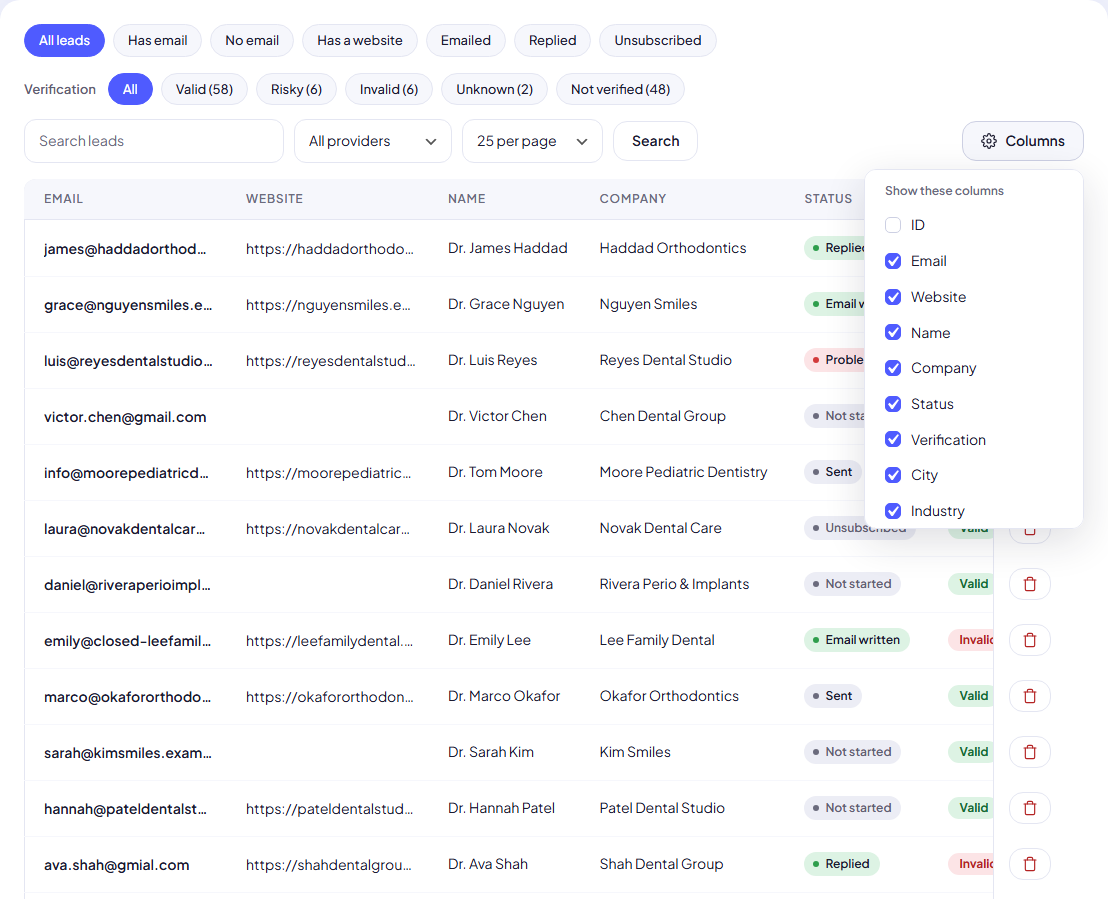
Your choice is remembered in this browser for every list.
Note: A column that is empty for every lead on the page is left out of the table and of the picker. A file with no website column has no Website column here. Email, Status and Verification always stay.
Company is filled from a column named company, company name, business, practice, organization or similar.
What the Status column means
| Status | Meaning |
|---|---|
| Not started | No email has been written for this lead yet. |
| In progress | The AI is writing the email now. |
| Email written | The email is ready. |
| Skipped | The lead is left out. The reason is shown next to it when there is one (no email address, website could not be read, skipped by you). Leads on the do-not-email list show as Skipped too. |
| Problem | The email could not be written. |
| Replied / Unsubscribed | The lead replied, or asked not to be emailed again. |
A lead with no address shows Will be skipped: no email address.
Remove one lead
- Click the bin icon in the lead’s Actions column.
- Confirm with Remove lead.
Any emails already sent to that lead and their replies are removed too. This cannot be undone.
Remove every lead with no email address
- In the orange card, click Remove these N leads.
- Confirm. You see Removed N leads with no email address.
Tip: Removing leads with no address keeps your counts honest and makes campaign progress easier to read. Those leads would be skipped anyway.
While an import is still running
If the list is not imported yet or the import stopped, this page shows a banner instead of the table, with Start import or Continue import and a progress bar. A list that was never confirmed shows the Check your columns step from Upload a lead list.
Common mistakes
- Expecting a filter to change the campaign. Filters only change what you see. A campaign emails the whole list, minus the verification results you leave out in the campaign. See Choose which addresses a campaign emails.
- Removing leads to “pause” them. Removing is permanent. To stop emailing someone without losing their history, add them to the do-not-email list.
Next step
Click any email address to open that lead: Lead details.
Still stuck? Open a ticket from Swift Support in the app, or contact us.