Lead details
Everything about one lead in one place, from its verification result and timeline to the original spreadsheet row and the conversation.
On this page
Who this is for: anyone checking why a lead was skipped, what was sent to them, or whether their address is good.
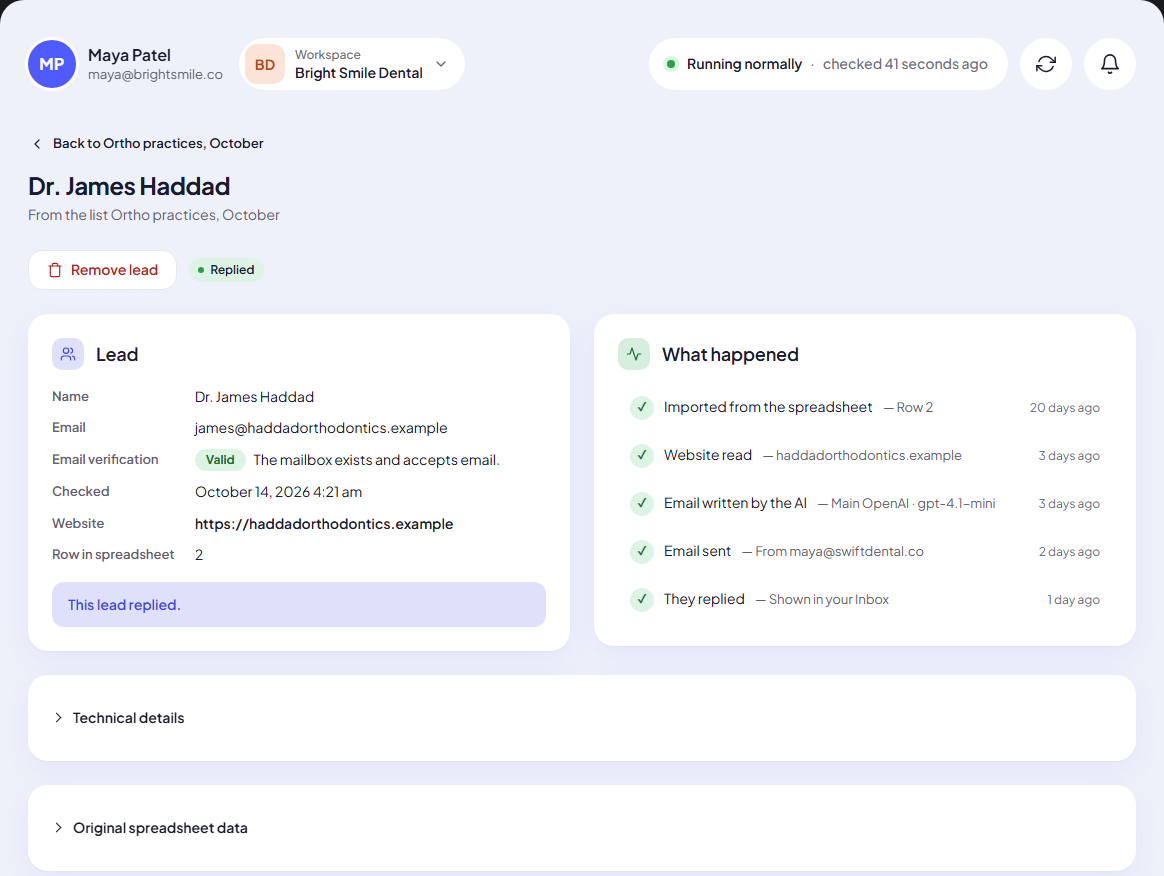
Open a list and click a lead’s email address. The page title is the lead’s name (or email, when there is no name), with From the list … under it.
What you see
Top of the page
- Back to list name: returns to the list.
- Remove lead: deletes this lead, including emails already sent to them and their replies. Asks first; cannot be undone.
- The lead’s status badge (for example Replied or Not started).
Lead card
| Line | What it shows |
|---|---|
| Name, Email | From your file. A dash means the value is empty. |
| Email verification | The result (Valid, Risky, Invalid, Unknown or Not verified) and the reason in one sentence. See Verification results explained. |
| Suggested address | Shown when the domain looks like a typing mistake: Did you mean sarah@gmail.com? |
| Checked | When the address was last verified. |
| Website | Opens the lead’s website in a new tab. |
| Why skipped | Shown for skipped leads: no email address, the website could not be read, you skipped this email, and so on. |
| Problem | Shown when the email could not be written. Check your AI connection in Settings, then start the campaign again. |
| Row in spreadsheet | The row number in the file you uploaded. Row 1 is the header, so the first lead is row 2. |
A sentence under the card sums up where the lead stands, for example The email has been written. or This lead unsubscribed. No more emails go to them.
What happened
A timeline of everything that happened to this lead, newest at the bottom: imported, website read, email written, sent, replied. Hover a time to see the exact date.
Technical details and Original spreadsheet data
Two folded sections:
- Technical details: the row number, the status code, the skip reason code, the last problem, the email provider (gmail, outlook, custom and so on) and when the lead was created and processed. Handy when you write to support.
- Original spreadsheet data: every column of the lead’s row, exactly as imported.
Conversation
Every email between you and this lead, with You sent, They wrote or Automatic reply on each message. Replies are shown without the older message quoted under them. Click Open conversation to answer from the Inbox.
Common questions
The lead was skipped. Why? Look at Why skipped. The common reasons: no email address, or the website could not be read on a campaign set to only email leads whose website we could read. A lead skipped with no further reason is usually on your do-not-email list (open Technical details: the skip reason is suppressed).
The address has a typo. The verifier suggests the likely address. Fix it in your spreadsheet and upload the corrected list; leads cannot be edited inside the app.
Next step
Keep people you must never email out of every campaign: The do-not-email list.
Still stuck? Open a ticket from Swift Support in the app, or contact us.