Website research
How the AI reads each lead's website, the three research modes, pages per lead, and the saved-websites settings.
On this page
Who this is for: anyone who wants emails that mention something real about each lead, and anyone wondering why some leads were skipped for their website.
Website research means we visit each lead’s website and give the AI a short summary of what it says. That is how an email can open with “I saw you just added Invisalign to your services” instead of a generic line.
It needs a Website column in your list. See Upload a lead list.
Choose a research mode in each campaign
In the campaign wizard, step 3 Message, under Website research:

| Mode | What happens |
|---|---|
| Let the AI read their website | Leads without a readable website still get an email, written from the list data. |
| Only email leads whose website we could read | Leads without a readable website are skipped. Most personal, fewer emails. |
| Use only the list data | No website is read. Faster and cheaper, but less personal. |
Pages per lead
In step 4, open Advanced: limit AI usage:
| Setting | Range (default) | What it does |
|---|---|---|
| Website pages read per lead | 0 to 10 (2) | How many pages of the site the AI reads. |
| Website text read per lead | 1,024 to 32,768 (8,192) | How much text is kept. 8,000 is about two pages. |
| AI requests per lead | 1 to 20 (5) | Research plus writing may take a few requests. Lower it to spend less. |
Note: These settings work the same whether Swift Pilot or your own AI key writes. With Swift Pilot, the text the AI reads and writes is charged from your credit, so reading more pages costs more. See Swift Pilot credit.
Tip: Link to the most useful page in your list. If the homepage says little, put the “About” or “Services” page in the Website column.
Saved websites
Open Settings, Website research. We save what we read so the same website is not downloaded again, which makes campaigns faster and cheaper.
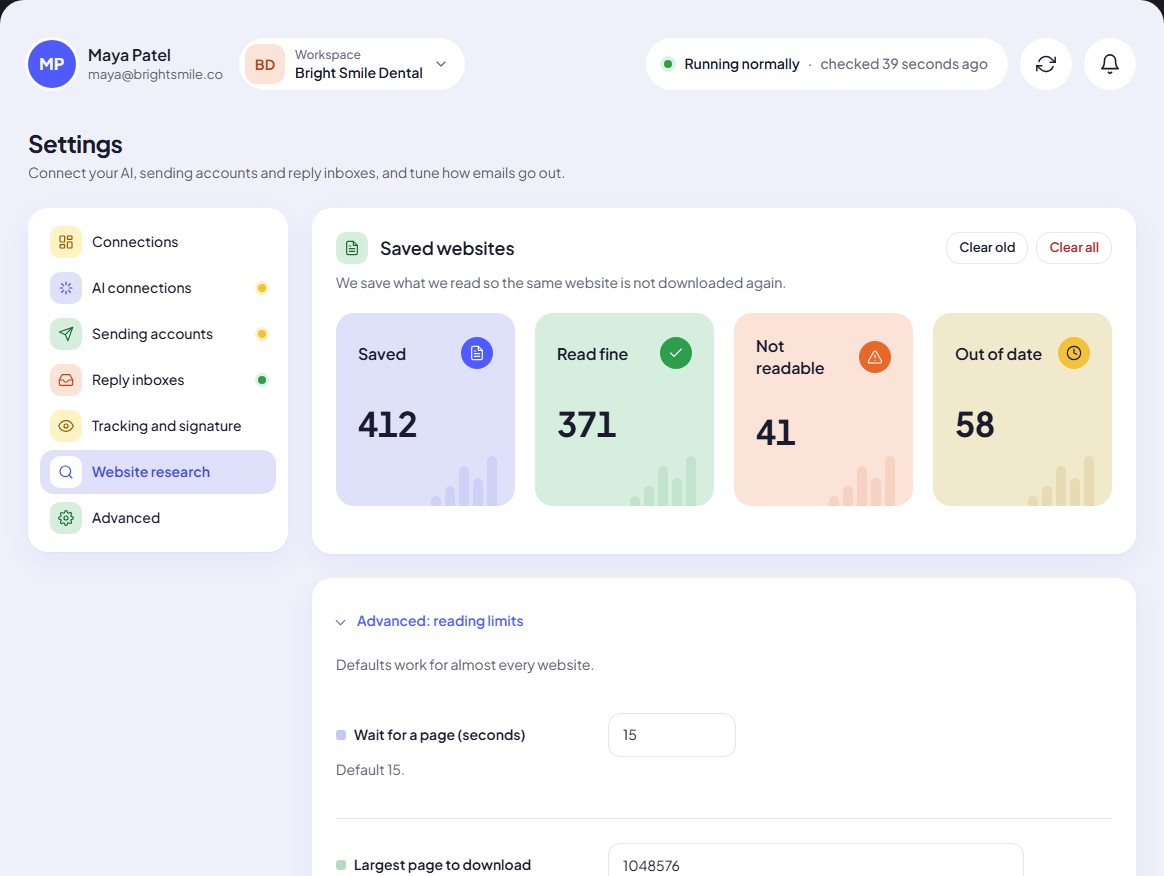
The tiles show how many websites are Saved, Read fine, Not readable and Out of date.
- Clear old removes the out-of-date ones.
- Clear all removes every saved website, after a confirmation. They are read again the next time a lead needs them.
Advanced: reading limits
Open Advanced: reading limits for the technical limits. Defaults work for almost every website.
| Setting | Range | Default |
|---|---|---|
| Wait for a page (seconds) | 3 to 60 | 15 |
| Largest page to download | 10,240 to 10,485,760 bytes | about 1 MB |
| Text kept per website | 1,024 to 32,768 characters | about 8,000 |
| Redirects to follow | 0 to 10 | 5 |
| Total time per website (seconds) | 5 to 120 | 30 |
| Remember a website for (days) | 0 to 30 (0 = read it fresh every time) | 1 |
| Browser name we send | text | leave as is |
Why a website could not be read
Common reasons: the site is down or very slow, it blocks visitors it does not know, it is not a normal web page (a PDF, an image), it is empty, or the address is wrong. Those leads count as Not readable. In the Only email leads whose website we could read mode they are skipped with We could not read the website, so this lead is skipped.
Next step
Turn research into replies: Write prompts that convert.
Still stuck? Open a ticket from Swift Support in the app, or contact us.