Preview the email before you send
See a real AI-written subject and email for the first lead of your list, in the wizard and on the campaign page.
On this page
Who this is for: anyone who wants to check what the AI will write before a single email goes out.
A preview is a real email, written by the AI for the first lead in your list, from the instructions on screen (saved or not). Nothing is sent and no lead is marked as handled.
Note: Previews work with your own AI key and with Swift Pilot. With Swift Pilot, each preview is charged from your credit like any other email. With no AI connected, or no credit left, there is no preview box. In that case, use review mode (I approve each email first) and check the first emails under Review emails instead. See Review AI emails before sending.
Preview in the wizard
- Open wizard step 2 (Subject) or step 3 (Message). The box below the instructions is titled Preview for first lead’s name.
- Write your instructions first. The button stays disabled with Write the instructions above first. while the box is empty.
- Click Generate preview. The button reads Writing… while the AI works.
- Read the result. To try again, change the instructions and click Generate again.
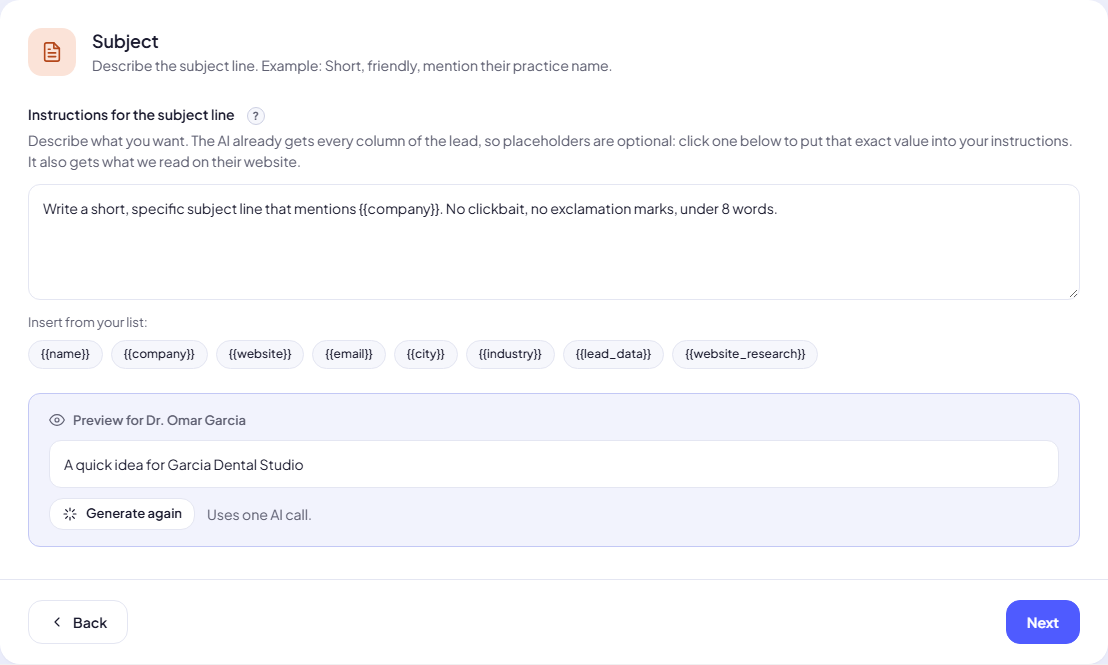
What each preview costs on your AI connection:
| Where | AI calls |
|---|---|
| Subject step | One AI call. Website research is not used. |
| Message step, research off | One AI call. |
| Message step, research on | A few AI calls: it reads the lead’s website first, within your AI usage caps. |
The message-step preview is written exactly as the campaign would write it: same research setting, same model choice, same limits.
Preview on the campaign page
The Instructions for the AI card shows both instruction boxes on the left and a preview panel on the right.
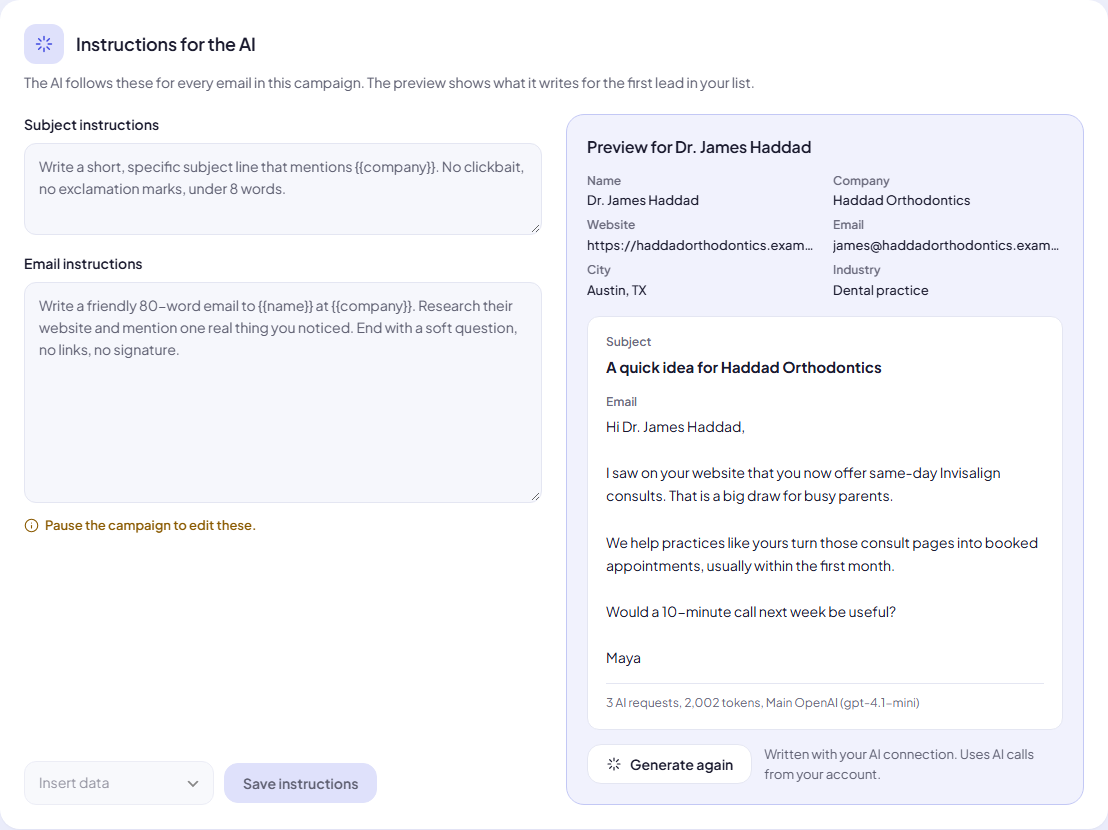
- The panel lists the first lead’s own data (up to eight fields, then +N more).
- It writes one preview automatically when the page opens, unless the campaign is finished, the instructions are empty, or the same preview was already written in this session.
- The result shows the Subject, the Email, and a line such as 3 AI requests, 2,002 tokens, Main OpenAI (gpt-4.1-mini).
- Edit the instructions (draft or paused campaigns only) and click Generate again to see the effect before you click Save instructions.
When a preview does not appear
| Message | What it means | Fix |
|---|---|---|
| Add leads to this list to see a preview. | The list is empty. | Import leads into the list. |
| This lead has no email address, so no email is written for it. | The first lead has no address. | Fix or remove that lead, or accept it is skipped during the campaign. |
| The AI skipped this lead, so there is no preview. | The AI decided not to write, for example because research was required and the site could not be read. | Check the website column, or change Website research. |
| Could not write the preview. Try again. | The AI call failed. | Click Try again. If it keeps failing, check Settings > AI connections. |
Tips
- The first lead is whoever is first in the list. If that row is unusual (no website, odd name), the preview may not represent the rest.
- Previews count like any other AI call: on your AI provider’s bill with your own key, or charged from your credit with Swift Pilot. They run only when you click (or once when the campaign page opens), never while you type.
Next step
Happy with the preview? Start, pause, stop and restart your campaign.
Still stuck? Open a ticket from Swift Support in the app, or contact us.