Campaign page and report
Read the live campaign page, the scheduled and sent email lists, and the final report with sent, opens, clicks, replies and bounces.
On this page
Who this is for: anyone who wants to know how a campaign is doing and what the numbers mean.
Open Campaigns and click a campaign name (or Open). The page refreshes itself every 5 seconds while the campaign is getting ready or running.
The status line
Under the campaign name is one sentence that sums up where it stands, for example:
- Running. 40 of 98 emails written, 68 sent today, daily limit reached, next at 1:57 AM. 12 emails are waiting for your approval.
- Paused. 80 of 90 emails written. Nothing is sent until you resume.
- Scheduled. Starts on Oct 20, 2026 9:00 AM.
- Finished. 78 emails sent.
- Stopped. Nothing is written or sent until you restart it.
Progress and the three tiles
Progress shows how many leads are handled out of the total, as a bar and a percentage, with next email in 4 mins when one is due.
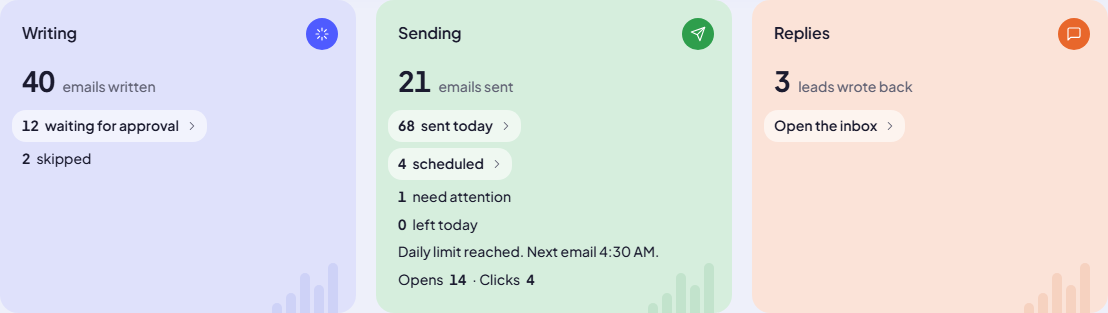
| Tile | Main number | Lines below |
|---|---|---|
| Writing | emails written | waiting for approval (opens the review list), skipped |
| Sending | emails sent | sent today (opens Sent emails), scheduled (opens Scheduled emails), need attention (failed), left today, the next send time or Daily limit reached, and Opens · Clicks when tracking has data |
| Replies | leads wrote back | Open the inbox, filtered to this campaign |
Sending accounts card
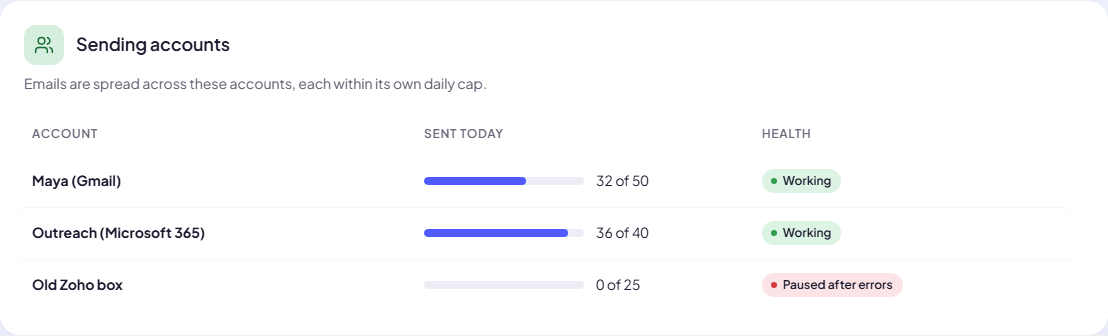
When the campaign sends from accounts, a table shows each account’s Sent today against its daily cap and its Health: Working, Needs attention, Not working or Paused after errors.
Settings, instructions and activity
- Settings lists every rule of the campaign: list, before sending, daily limit, days, window, waits, verification, accounts, AI model, research and the key dates.
- Instructions for the AI shows the subject and email instructions and a live preview. See Preview the email.
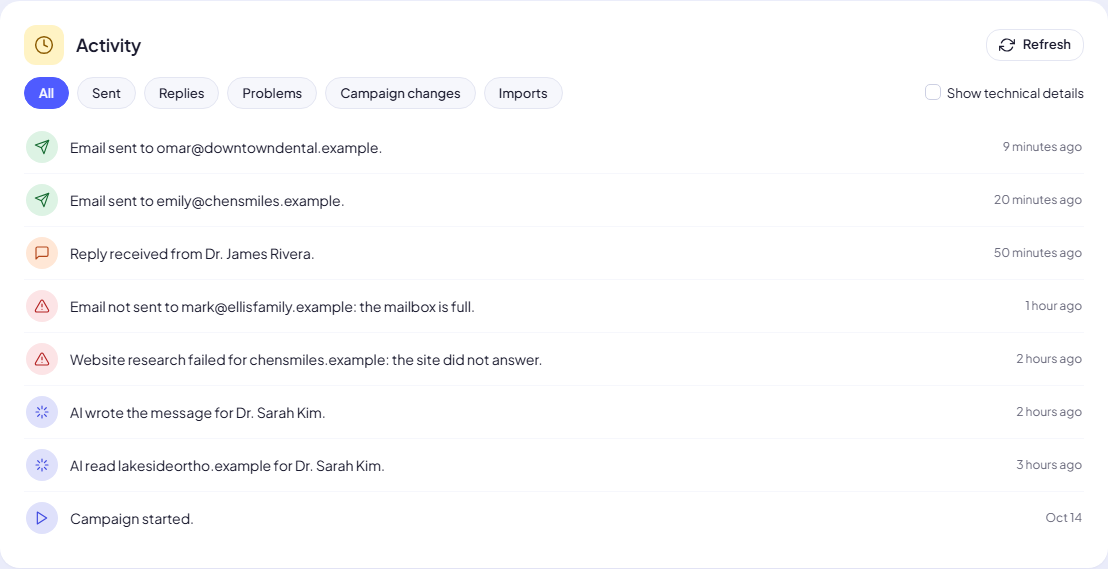
- Activity is the campaign’s log, newest first, with filters (Sent, Replies, Problems, Campaign changes, Imports) and a Show technical details switch. Click Refresh to load new rows; No new activity. means nothing changed.
Scheduled emails and Sent emails
Click scheduled or sent today on the Sending tile.
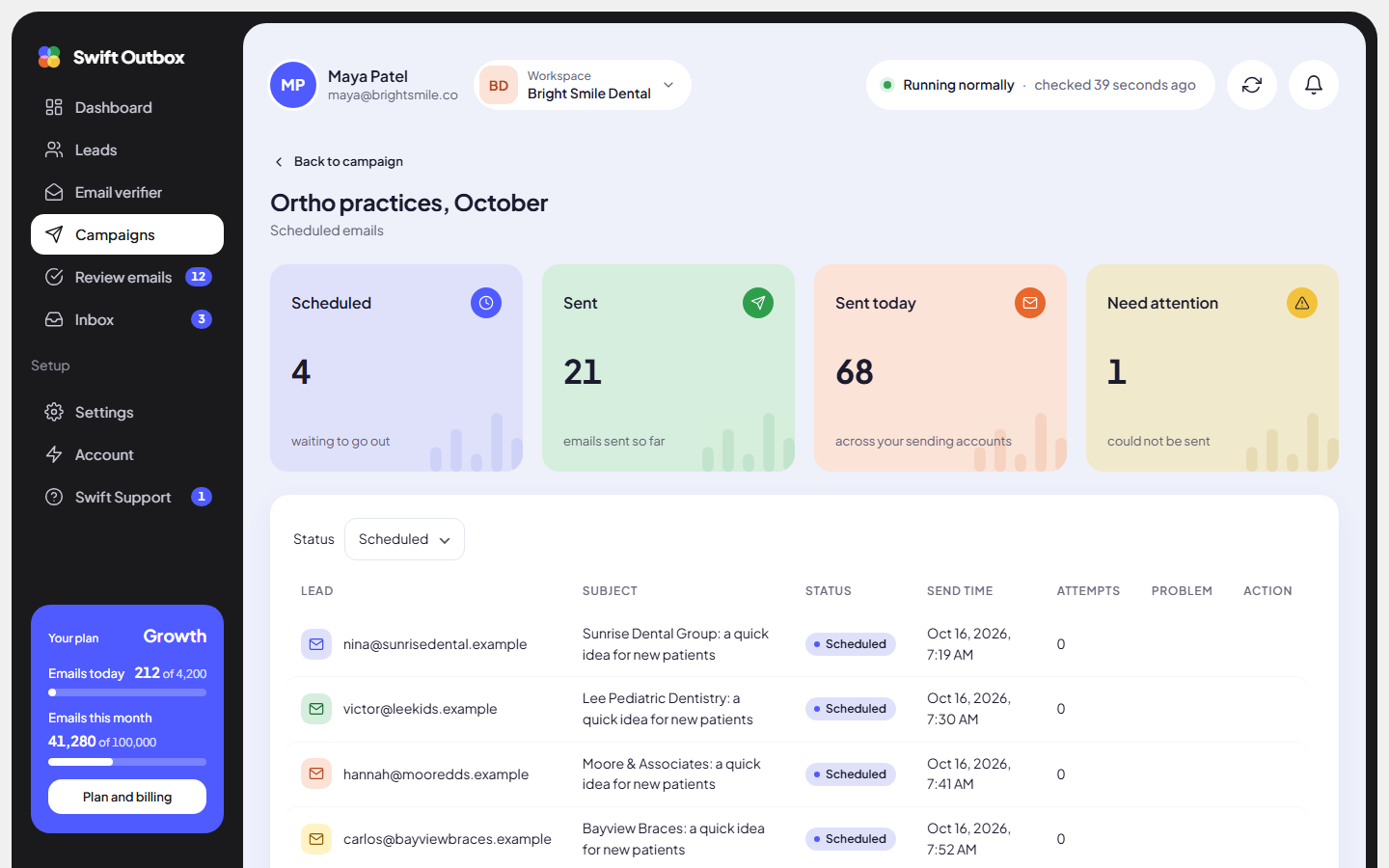
Scheduled emails lists the send queue with Lead, Subject, Status, Send time, Attempts and Problem. Filter by Status: Scheduled, Sent, Not sent, Cancelled or All. On a Not sent row, click Try again to put it back in the queue (Scheduled again. It goes out with the next send.).
Sent emails lists every sent email with the lead, subject, time and the account it was sent from. Switch on Show technical details to add the AI model and a reference id.
The report
Click Report on a finished or stopped campaign. While a campaign is still going, the numbers are live (These numbers are live. A final copy is kept when the campaign finishes.).

| Card | Meaning |
|---|---|
| Leads | Everyone in the chosen list. |
| Could be emailed | Leads with an email address. |
| Emails sent | Emails that left your sending account. |
| Skipped | Leads not emailed (no email, no website, or you skipped). |
| Not sent | Emails your sending account could not deliver, including bounces. |
| Replies | People who wrote back. |
| Opens | Unique emails opened at least once. |
| Clicks | Unique emails with a clicked link. |
| Unsubscribed | People who opted out. |
| Websites read | Websites we could read for personal details. |
| Websites not readable | Sites that were down, blocked or empty. |
Below the cards:
- Emails sent per day: a chart of the last 14 days with sends.
- Timing and AI requests: AI requests, started, finished, duration, days active, average sent a day and the final status. Show technical details adds tokens in and out.
Use Refresh numbers to recount, and Export CSV to download one row per email (email, subject, status, sent at, replied, researched).
Opens and clicks depend on your plan
Open and click tracking is a plan feature (Growth and above at the time of writing; check Plan and billing for yours). It also has to be switched on in Settings > Tracking and signature (Track opens, Track clicks). Without it, no opens or clicks are recorded. The Opens, Clicks and Unsubscribed cards only appear once they have data. Unsubscribes work on every plan through the unsubscribe link and the one-click unsubscribe header.
Note: Opens are an estimate. Many mail apps block or pre-load images, so replies are the number to trust.
Where bounces show up
A permanent bounce is picked up from your reply inbox. The address goes on your suppression list, the email counts as Not sent, and in the inbox the message is labelled Bounce. If bounces cross the safety threshold the campaign pauses itself (see Deliverability playbook).
Next step
Approve your waiting emails: Review AI emails before sending.
Still stuck? Open a ticket from Swift Support in the app, or contact us.