Notifications, alerts and messages
The short confirmations, the bell, the banners and the alert emails, and what to do with each.
On this page
Who this is for: anyone who wants to know where the app tells you something worked, or that something needs fixing.
The app talks to you in four places. Each one has a different job.
1. Short confirmations (top right)
After most actions a small message slides in at the top right of the screen, for example Message approved and queued., Campaign paused. or Reply sent. It closes by itself after about 5 seconds, or click the x to close it sooner.
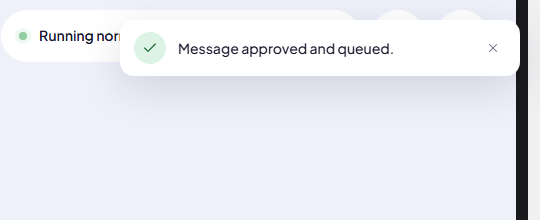
- Green tick: it worked.
- Red: it failed, with the reason in one sentence, for example Could not start the campaign.
- Yellow: a warning, for example Select at least one message.
- At most four show at once.
When an action hits a plan limit, the upgrade dialog opens instead of a red message.
2. The bell and the status pill
The top bar shows the health of background processing, such as Running normally with when it was last checked. Next to it, the bell shows a count when something needs your attention.
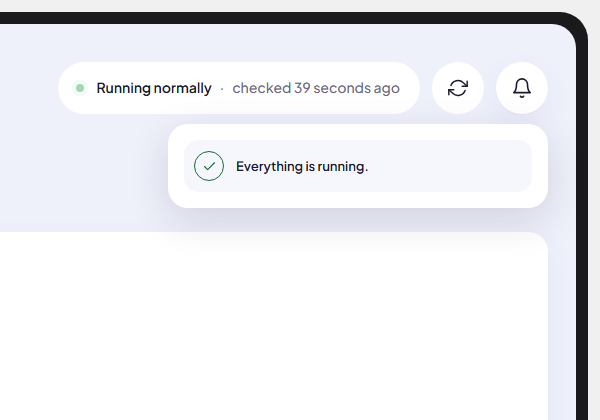
Open the bell to see one row per problem, each with a one-line sentence and a button that takes you to the fix. With nothing open it says Everything is running.
| Problem | Sentence | Button |
|---|---|---|
| AI errors | Your AI provider is returning errors, so emails cannot be written. | Check AI settings |
| Sending account failing | A sending account could not send. Emails to it are waiting. | Check sending account |
| Reply inbox failing | A reply inbox could not be checked, so new replies may be missing. | Check reply inbox |
| Background processing late | Background processing ran late while a campaign was active. | See advanced settings |
| Plan limit | You have reached a limit on your plan. | (opens Plan and billing) |
| Billing | There is a problem with your billing. | (opens Plan and billing) |
Each row can carry details, such as the exact error from your mail server, and how many times it happened. You can dismiss a row for 24 hours; if the problem is still there after that, it comes back. A problem clears itself once the cause is fixed, for example after a successful send from that account.
3. Banners above the page
The same problems also show as banners under the page title, together with account messages such as Confirm your email address. or a failed payment. They stay until the cause is fixed or you dismiss them.
4. Alert emails
In Settings > Advanced, Email me about problems sends an email when something stops working, at most one email per problem a day. Use Send alerts to to send them to another address.
Where else to look
- Needs attention on the dashboard lists the same problems. See Dashboard stats.
- A campaign’s Activity log records every step for that campaign, including problems that do not raise an alert, such as Daily send limit reached; sending resumes tomorrow.
- On a campaign page, a yellow note appears when background processing is late or stopped: Background processing is running late, so emails may go out later than planned.
Common mistakes
- Dismissing without fixing. The alert returns after 24 hours, and emails keep waiting meanwhile.
- Turning off alert emails. If you do not log in daily, keep them on so a broken mailbox does not go unnoticed for days.
Next step
Still stuck? Open a ticket from Swift Support in the app, or contact us.