Swift Support tickets
Open a support ticket from inside the app, add screenshots, follow the reply and know how fast we answer on your plan.
On this page
Who this is for: anyone who is stuck, found a bug or has a question about their account.
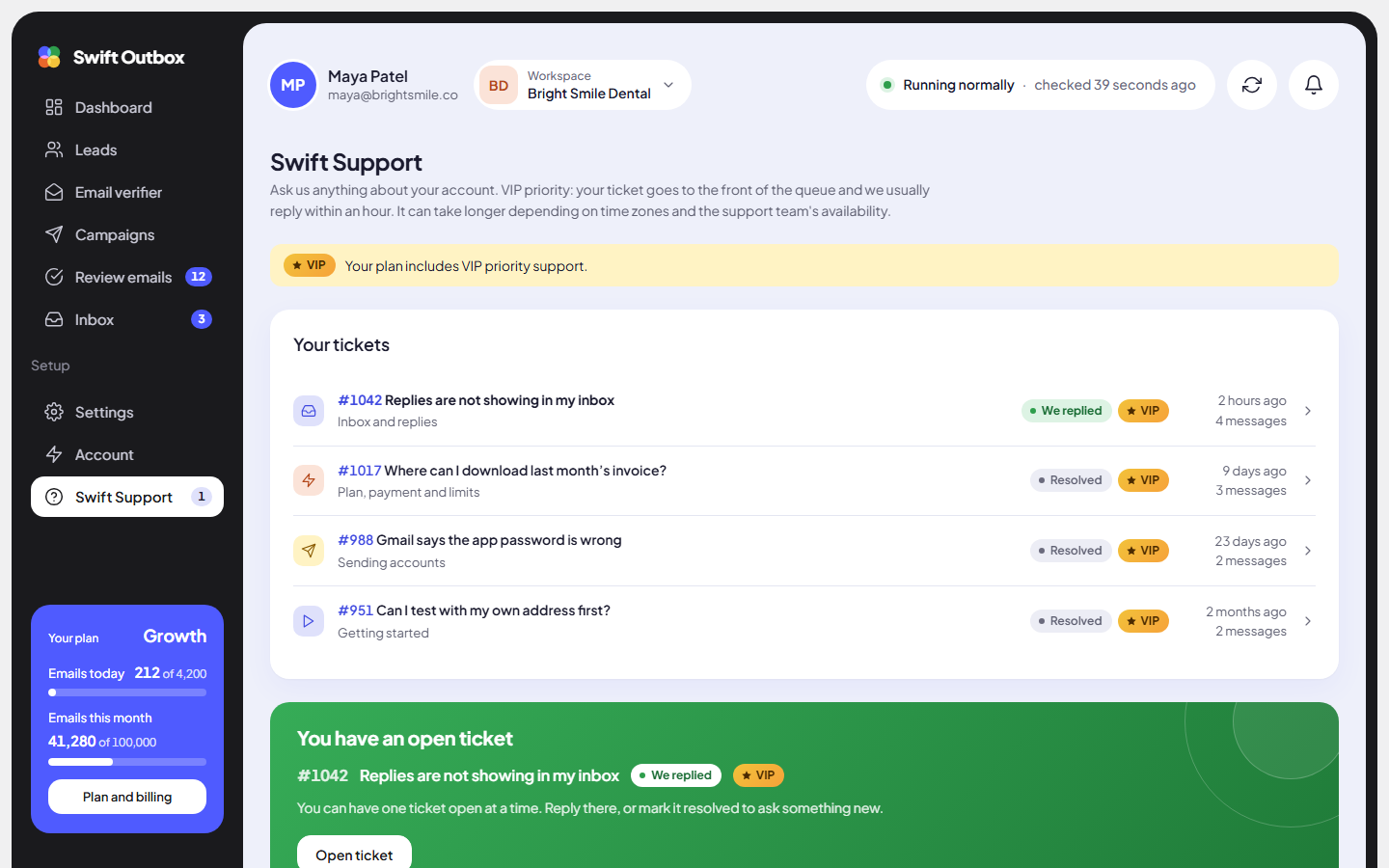
Click Swift Support at the bottom of the sidebar. Tickets are answered by the Swift Outbox team, and replies arrive both in the app and by email.
How fast we reply
| Plan | Priority | Reply time |
|---|---|---|
| Free | Standard | Within 24 hours on business days, Monday to Friday. You may also hear from us at the weekend, depending on availability. |
| Starter, Growth, Agency | VIP | Your ticket goes to the front of the queue. We usually reply within an hour, though time zones and team availability can make it longer. |
Open a ticket
- Under What is it about?, pick the closest category, such as Sending accounts, Plan, payment and limits or Something is not working.
- Write a Subject: one line that sums it up, for example “Replies are not showing in my inbox”.
- In Message, say what you were doing and what happened. Include the campaign or account name if it is about one.
- Add up to 3 Screenshots: click Add a screenshot, drop an image, or paste one into your message. PNG, JPEG, WebP or GIF, up to 5 MB each.
- Click Send to support. The ticket page opens.
Warning: Do not paste passwords, app passwords or API keys into a ticket, and hide them in screenshots. We never need them to help you.
Follow your ticket
Each ticket shows a status:
- Waiting for us: we have your message and will reply here and by email.
- We replied: there is an answer for you. Swift Support in the sidebar shows a badge.
- Resolved: the ticket is closed.
Write in Your reply and click Send reply to answer; the ticket goes back to Waiting for us. New replies appear without reloading the page.
One open ticket at a time
You can have one open ticket at a time. While it is open, the Swift Support page shows You have an open ticket with an Open ticket button. Reply there, or click Mark as resolved to close it and ask something new.
Screenshots are deleted from our servers when a ticket is resolved.
Tip: The faster we can see the problem, the faster we can fix it. A screenshot of the error and the time it happened usually saves a round of questions.
Common mistakes
- One ticket for several unrelated questions. Ask the most urgent one first, resolve it, then open the next.
- “It does not work” with no details. Say which page, what you clicked and the exact message you saw.
Next step
Leaving for good? Read Delete your account first.
Still stuck? Open a ticket from Swift Support in the app, or contact us.