Campaigns overview and lifecycle
What a campaign is, the statuses it moves through from draft to finished, and what you can do in each one.
On this page
Who this is for: anyone about to run their first campaign, or anyone wondering why a campaign shows “Paused” or “Stopped by a problem”.
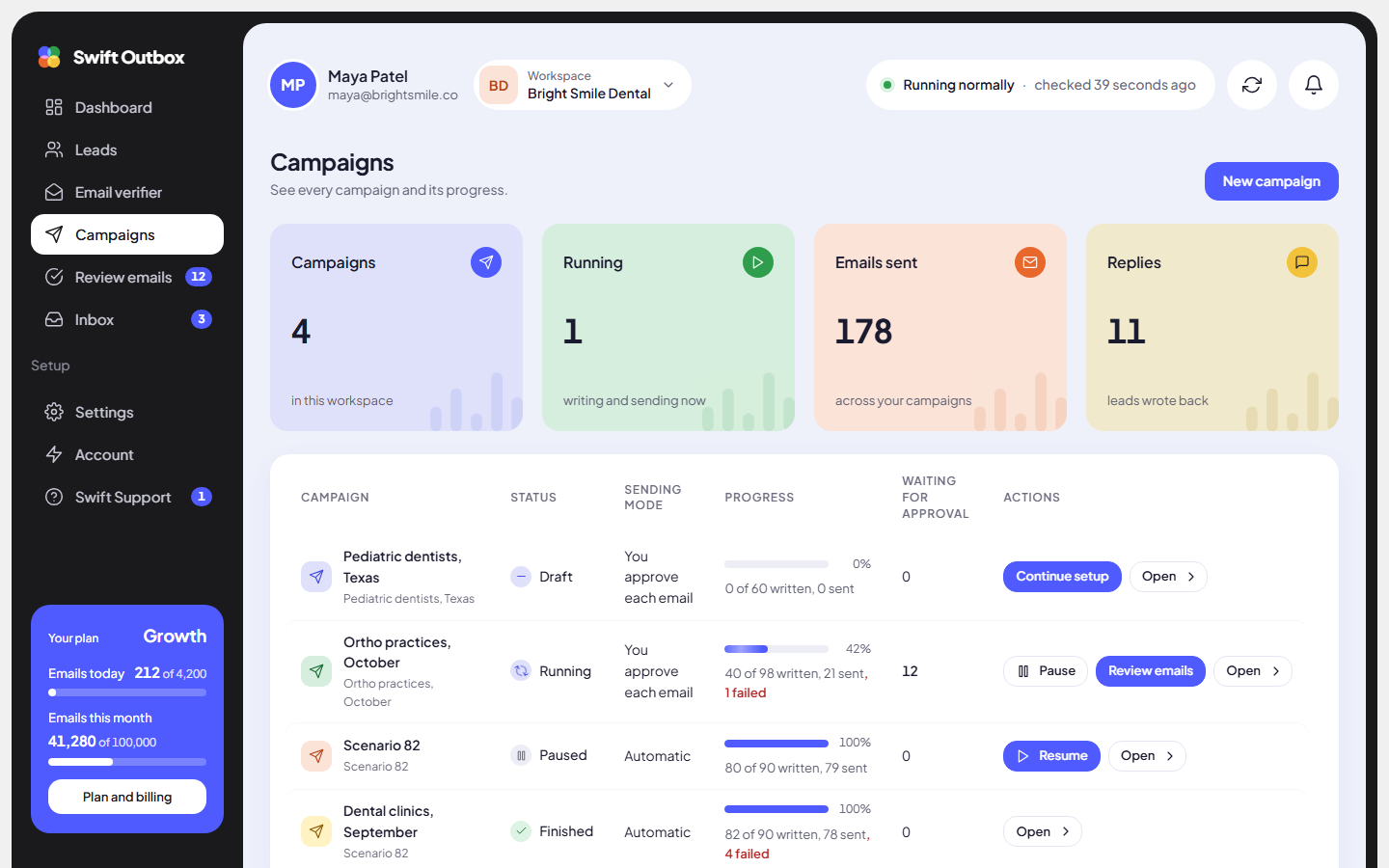
A campaign takes one lead list, asks the AI to write one personal email for every lead on it, and sends those emails from your sending accounts within the limits you set. Each lead gets exactly one email per campaign. When a lead replies, nothing more is sent to them.
What a campaign is made of
| Part | What it decides | Where you set it |
|---|---|---|
| Lead list | Who gets an email | Wizard step 1, Choose leads |
| Subject instructions | How the AI writes each subject line | Wizard step 2, Subject |
| Email instructions | How the AI writes each email | Wizard step 3, Message |
| Website research | Whether the AI reads each lead’s website first | Wizard step 3 |
| Sending rules | How many emails go out, on which days, at what times, from which accounts, and whether you approve each one | Wizard step 4, Sending rules |
The full walkthrough is in Create a campaign step by step.
The campaign statuses
Every campaign shows one status. The words below are exactly what you see in the app.
| Status | What it means | What you can do |
|---|---|---|
| Draft | Set up but not started. Nothing is written or sent. | Edit, Start campaign, Duplicate, Delete |
| Scheduled | A draft with a start date and time. It starts by itself when that time comes. | Edit, Start campaign, Duplicate, Delete |
| Getting ready | You just started it. Your leads are being prepared. This takes seconds. | Wait |
| Running | The AI is writing emails and they go out within your sending rules. | Pause, Stop campaign, Duplicate |
| Paused | Nothing is written or sent until you resume. Queued emails wait. | Resume, Stop campaign, Edit (sending rules only), Duplicate |
| Finished | Every lead was handled. The report is final. | Report, Duplicate, Delete |
| Stopped | You stopped it. Unsent work was cancelled. | Restart campaign, Report, Duplicate, Delete |
| Stopped by a problem | It could not start or could not go on. The reason shows at the top of the campaign page. | Duplicate, Delete |
How a campaign moves between statuses
- Draft. You create the campaign in the wizard. Your work is saved every time you move to another step.
- Getting ready. You click Start campaign (or the scheduled time arrives). The app checks that an AI can write for you and that at least one lead can be emailed. Leads without an email address are skipped here.
- Running. The AI writes one email per lead. In review mode each email waits for your approval under Review emails; in automatic mode it is scheduled straight away. Scheduled emails go out within your daily limit, sending days and time window.
- Paused (optional). You click Pause, or the app pauses the campaign itself when too many emails bounce or are marked as spam (see Deliverability playbook). Click Resume to carry on.
- Finished. When no lead is left to write for and every written email has been sent, skipped or cancelled, the campaign finishes on its own and a final copy of the report is kept.
At any point while it is running or paused you can Stop campaign. A stopped campaign can be restarted later.
Note: In review mode a campaign cannot finish while emails are still waiting for your approval. If a campaign seems stuck at 100%, open Review emails and approve or skip what is left.
Restarting a stopped campaign
A stopped campaign is not lost. Click Restart campaign on the campaign page (or Restart in the campaign list) and confirm.
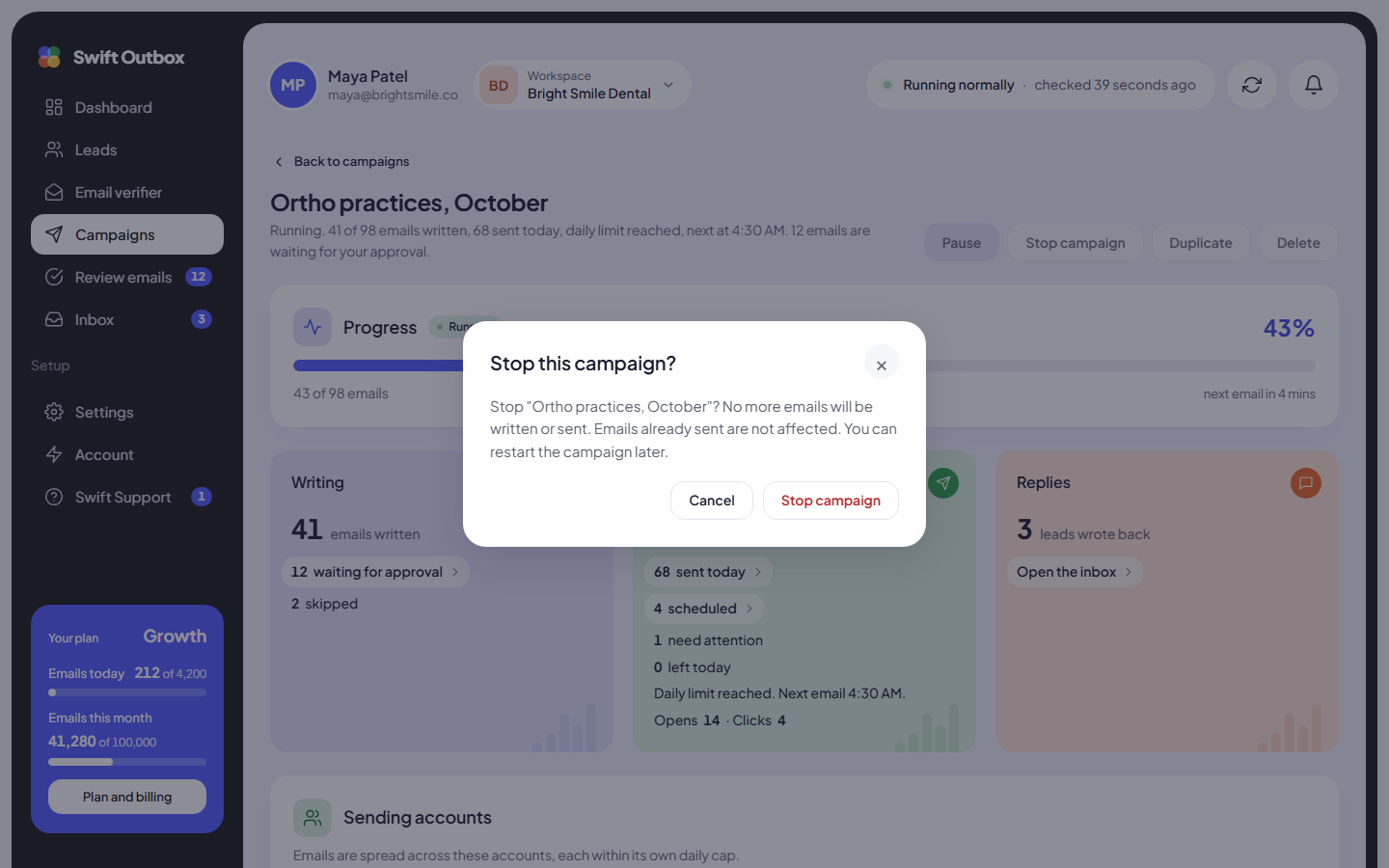
- It continues with the leads that have not been emailed yet.
- Leads who already received an email are not emailed again.
- Emails that were written but cancelled when you stopped are written again from scratch.
- Restart runs the same checks as a first start, so it can fail for the same reasons (for example, no AI available).
A Finished or Stopped by a problem campaign cannot be restarted. Use Duplicate to make a new draft with the same settings, called “name (copy)”, and start that.
One list, one open campaign
A lead list can belong to only one open campaign (draft, getting ready, running or paused) at a time. If you pick a list that is already in use you see: This list is already used by another active or draft campaign. Finish, stop or delete the other campaign first, or upload a separate list.
Deleting a campaign
You can delete a campaign that is a draft, stopped, finished or stopped by a problem. Running and paused campaigns must be stopped first. Deleting removes the campaign’s emails, schedule and report for good. Your lead list stays, and leads that were only being worked on become available again.
Common mistakes
- Expecting follow-up emails. A campaign sends one email per lead. Plan your offer so the first email does the work.
- Leaving approvals waiting. In review mode nothing goes out until you approve it.
- Starting with no sending account. The campaign starts, but the activity log shows No sending account is available (disabled, in error or none selected). and nothing is sent.
Next step
Build your first one: Create a campaign step by step.
Still stuck? Open a ticket from Swift Support in the app, or contact us.