Dashboard tour
What every part of the Dashboard shows, from the setup checklist and tiles to Needs attention, your campaigns and background processing.
On this page
Who this is for: anyone who wants to read the Dashboard at a glance and know what to do next.
The Dashboard is the first page after you log in. Its job is simple: show whether everything is working, and what needs you.
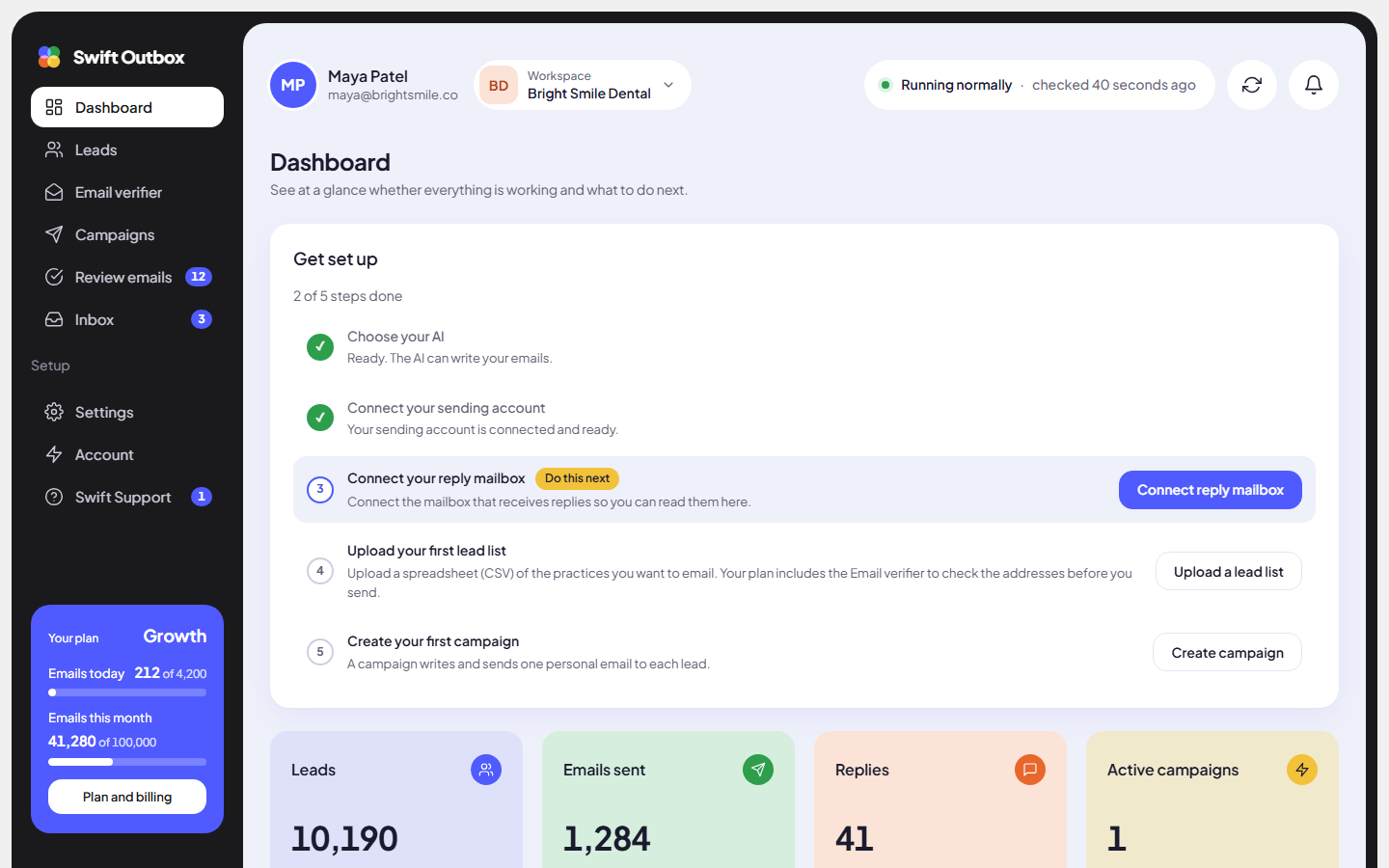
The frame around every page
- Sidebar (left): every section of the app. Review emails and Inbox show a count badge when drafts or replies are waiting. Swift Support shows a badge when we have replied to your ticket.
- Plan card (bottom of the sidebar, admins only): your plan, Emails today and Emails this month with a bar for each, and a Plan and billing button.
- Workspace switcher (top bar): shows the workspace you are in. Click it to Switch workspace.
- Status pill (top right): “Running normally” when background processing is healthy, with the time of the last check. Next to it are Refresh and the notification bell.
Note: On the Free plan a bar across every page shows your emails today and this month, with an Upgrade button.
Get set up
Until every connection is in place, a Get set up checklist sits at the top with five steps: choose your AI (your own key or Swift Pilot), connect your sending account and reply mailbox, upload a lead list and create a campaign. The next step is marked Do this next. When all five are done the checklist disappears and a Setup complete badge shows next to the page title.
The tiles
The first row compares the last 30 days with the 30 days before:
| Tile | What it counts |
|---|---|
| Leads | Leads in this workspace |
| Emails sent | Campaign emails sent |
| Replies | Replies found in your reply inboxes |
| Active campaigns | Campaigns running and paused |
The second row is about today and the queue:
| Tile | What it counts |
|---|---|
| Sent today | Emails since midnight |
| Waiting for your approval | Drafts to check. Click it to open Review emails. |
| Scheduled | Emails in the queue, waiting for their time slot |
| Not sent | Emails that need a retry. It reads “all emails delivered” when there are none. |
Emails sent and replies
A chart of emails sent and replies over time. Use the range selector to change the period. A falling reply line while sends stay steady usually means the message or the list needs work.
Needs attention
Problems that stop emails from going out or replies from coming in, such as a sending account that was turned off after failed sends, or a reply inbox we could not check. Each item links to where you fix it. When nothing is wrong it shows an all-clear.
Tip: Check Needs attention first every morning. A sending account with an expired password stops sending quietly until you fix it.
Your campaigns
A table of your campaigns with Status, Progress, Sent, Replies and Waiting for approval. Click a campaign to open it. With no campaigns yet, use Create campaign.
Background processing and Recent activity
Background processing shows whether the app’s background work (writing, sending, checking inboxes) is keeping up: the last check, and counts for Pending, Processing, Failed and Completed today. Recent activity lists the latest events in this workspace, newest first.
When a limit is reached
If you use up your daily or monthly emails, a message at the top tells you, for example “You have sent all 80 emails for today. It starts again tomorrow at” a set time, with an Upgrade button. Daily numbers reset every day; monthly numbers reset on your billing date.
Common mistakes
- Reading Scheduled as stuck. Scheduled emails are waiting for the sending window and the wait between emails. That is normal.
- Ignoring Not sent. These usually point to a sending account problem. Open Needs attention or Settings > Sending accounts.
Next step
Make sure your emails reach the inbox: Connect a sending account.
Still stuck? Open a ticket from Swift Support in the app, or contact us.