The lead lists page
See every uploaded list with its totals and import status, and open, rename, finish importing or delete a list.
On this page
Who this is for: anyone who has uploaded at least one list and wants to find, rename or tidy up their lists.
Open Leads in the left menu. The page is titled Lead lists.
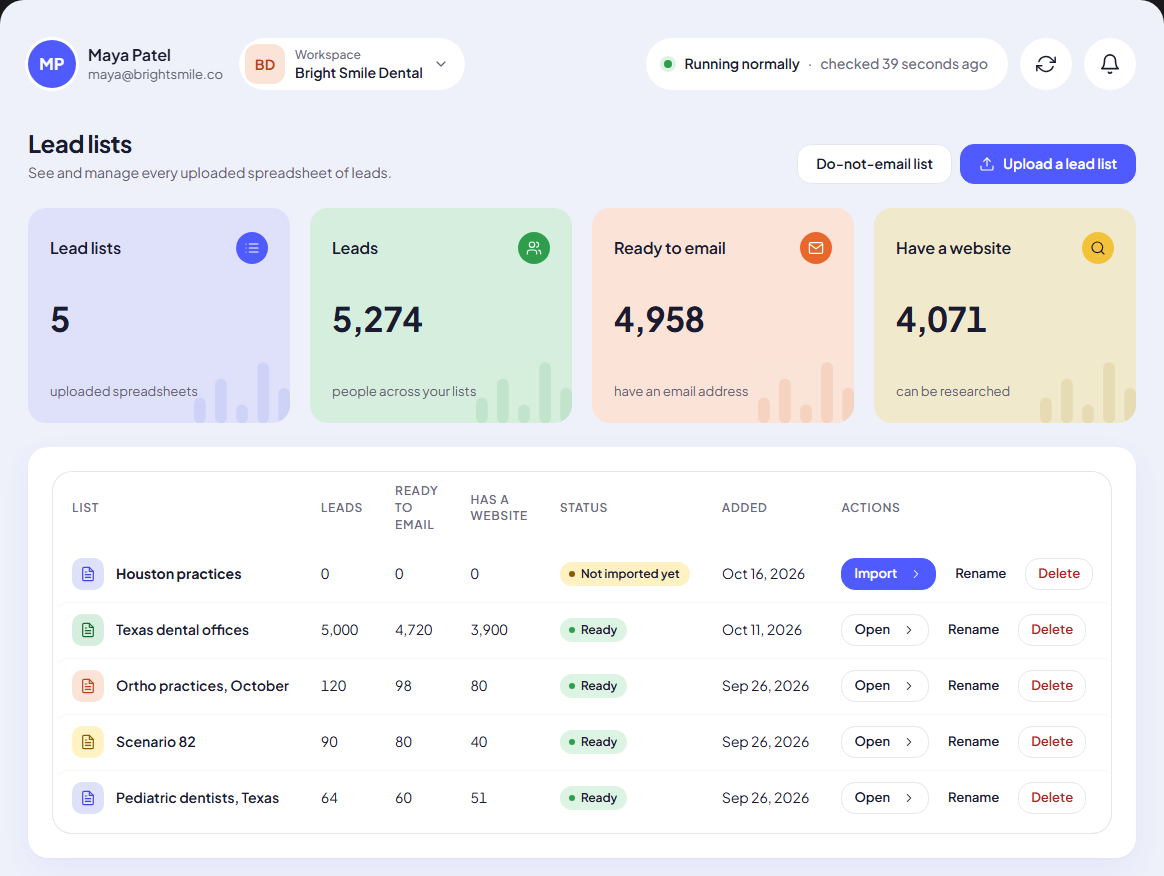
The four totals
When all your lists fit on one page, four tiles add them up:
| Tile | What it counts |
|---|---|
| Lead lists | Uploaded spreadsheets. |
| Leads | People across your lists. |
| Ready to email | Leads that have an email address. |
| Have a website | Leads with a website we can research. |
The lists table
Each row is one list with its Leads, Ready to email and Has a website counts, its Status and the date it was Added.
Import status
| Status | Meaning | Button in the row |
|---|---|---|
| Not imported yet | The file is uploaded, but you have not confirmed the columns and started the import. | Import |
| Importing | Rows are being added right now. | Continue import |
| Ready | Imported. The list can be opened and used in a campaign. | Open |
| Import stopped | The import was interrupted. The leads imported so far are kept. | Continue import |
Only a list marked Ready can be opened or chosen in a campaign.
Tip: An import that stopped does not start over. Continue import picks up from the row where it stopped.
Open a list
Click the list name or Open. See Work with a list.
Rename a list
- Click Rename in the list’s row.
- The name turns into a text box. Type the new name (up to 190 characters).
- Click Save, or press Enter. Press Escape or click Cancel to keep the old name.
You can also rename a list from inside it, with the Rename button at the top of the list page. Renaming never changes the leads or any campaign.
Delete a list
- Click Delete in the list’s row.
- Read the confirmation: Delete the list “…” and its N leads? Deleting cannot be undone.
- Click Delete list.
Warning: A list that any campaign uses cannot be deleted, even if the campaign has finished. The row then shows This list is used by a campaign. To clear out bad leads from such a list, remove leads instead: see Work with a list and Clean up a list.
Other buttons on this page
- Do-not-email list opens the addresses and domains that never get an email. See The do-not-email list.
- Upload a lead list starts a new import. See Upload a lead list.
Common mistakes
- Leaving a list on “Not imported yet”. The upload alone does not create leads. Click Import, confirm the columns, then Start import.
- Uploading the same file twice. Each upload makes a new list. Delete the copy you do not need before a campaign uses it.
Next step
Open a list and get to know its tools: Work with a list.
Still stuck? Open a ticket from Swift Support in the app, or contact us.