Outlook and Microsoft 365 SMTP settings
The Outlook and Microsoft 365 SMTP server, port and login rules, what your admin must enable, and how to connect the mailbox to a cold email tool.
On this page
The SMTP settings for a Microsoft 365 (work or school) mailbox are: server smtp.office365.com, port 587, STARTTLS, with the mailbox’s full email address and password. Outlook.com and Hotmail personal accounts use smtp-mail.outlook.com, port 587, STARTTLS, but only with OAuth2 sign-in. For Microsoft 365, your admin must turn on Authenticated SMTP for the mailbox, and security defaults must be off, or the login fails. Microsoft also turned off password sign-in for IMAP, so a password-based tool can send from Microsoft 365 but cannot read its replies. Swift Outbox signs in with a password, so read these limits before you choose Microsoft for cold email.
Outlook and Microsoft 365 SMTP settings at a glance
| Account type | SMTP server | Port | Security | Sign-in |
|---|---|---|---|---|
| Microsoft 365 / Office 365 (work or school) | smtp.office365.com | 587 | STARTTLS (TLS 1.2+) | Email address and password, or OAuth |
| Outlook.com, Hotmail, Live (personal) | smtp-mail.outlook.com | 587 | STARTTLS | OAuth2 only |
| Microsoft 365 IMAP (replies) | outlook.office365.com | 993 | SSL/TLS | OAuth only |
Sources: How to set up a device or application to send email using Microsoft 365, POP, IMAP, and SMTP settings for Outlook.com and Deprecation of Basic authentication in Exchange Online (Microsoft).
Microsoft notes that if a tool suggests port 465, it does not support the TLS versions Microsoft 365 needs. Use 587.
What works with Swift Outbox, and what does not
Swift Outbox connects mailboxes over SMTP and IMAP with a password or app password. There is no Microsoft sign-in (OAuth). With Microsoft that means:
| Mailbox | Send campaigns | Read replies (reply inbox) |
|---|---|---|
| Microsoft 365 with Authenticated SMTP on | Yes | No: Microsoft blocks password sign-in for IMAP |
| Microsoft 365 with security defaults on | No | No |
| Outlook.com, Hotmail, Live | No | No |
If you send from Microsoft 365, set Replies go to on the sending account to a mailbox that does allow IMAP with an app password (Gmail, Zoho or your web host), and connect that mailbox as the reply inbox. Leads then see that reply address when they answer.
Note: If your whole team lives in Microsoft 365 and you want replies read from that mailbox, a cold email tool that supports Microsoft sign-in fits better than Swift Outbox today.
What your Microsoft 365 admin must turn on
- Authenticated SMTP for the mailbox. In the Microsoft 365 admin center, go to Users > Active users, select the user, open Mail, choose Manage email apps, tick Authenticated SMTP and save. Microsoft turns SMTP AUTH off for organizations created after January 2020, so most newer tenants need this step.
- Security defaults off. Microsoft says that when security defaults are on, SMTP AUTH is already disabled. Turning them off is a security decision for your admin; an alternative is a dedicated sending domain on another provider.
- No policy that blocks basic authentication for SMTP. An authentication policy that disables basic authentication for SMTP blocks the login even when Authenticated SMTP is ticked.
Source: Enable or disable SMTP AUTH in Exchange Online (Microsoft Learn).
The 2026 change to password-based SMTP
Microsoft updated its timeline in January 2026: password-based SMTP AUTH stays as it is until December 2026. At the end of December 2026 it is turned off by default for existing organizations, and admins can turn it back on. New organizations created after December 2026 will not have it by default, and Microsoft will announce the final removal date in the second half of 2027. When a login is refused for this reason, the error reads “550 5.7.30 Basic authentication is not supported for Client Submission.” Source: Updated Exchange Online SMTP AUTH Basic Authentication deprecation timeline (Microsoft Exchange Team).
Connect a Microsoft 365 mailbox in Swift Outbox
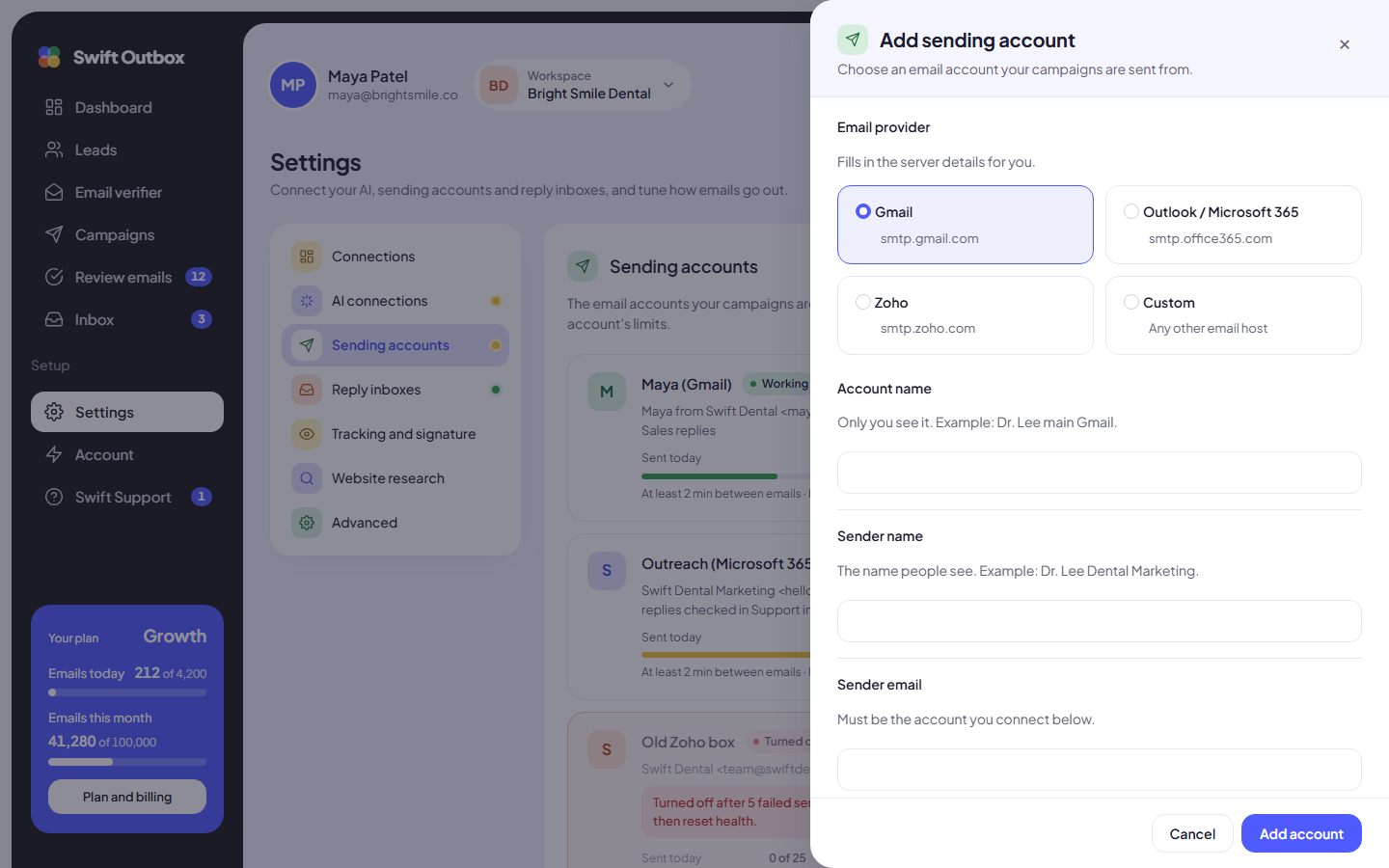
- Go to Settings > Sending accounts and click Add sending account.
- Under Email provider, pick Outlook / Microsoft 365. The server details fill in for you (smtp.office365.com, 587, TLS).
- Account name: a label only you see.
- Sender name and Sender email: the name people see and the Microsoft 365 address you connect. The sender email must be the mailbox you log in with.
- Replies go to: the address of the mailbox you connect as your reply inbox (see above).
- Email address or username: your full email address.
- Password or app password: the mailbox password, or an app password if your admin uses per-user multifactor sign-in with app passwords allowed.
- Set the Limits and click Add account.
- Click Send test on the account row, enter an address you can check, and click Send test email. A campaign can only use the account after this test goes through.
Troubleshooting Outlook and Microsoft 365 SMTP errors
| What you see | Likely cause and fix |
|---|---|
| “The test email could not be sent” with 5.7.139 or 535 5.7.3 in the details | SMTP AUTH is off for the mailbox or organization, security defaults are on, or the password is wrong. Ask your admin to tick Authenticated SMTP and check security defaults. |
| 550 5.7.30 Basic authentication is not supported | Your organization has password-based SMTP turned off. Your admin can turn it back on while Microsoft still allows it. |
| 5.7.60 Client doesn’t have permissions to send as this sender | The Sender email is not the mailbox you log in with. Use the same address in both fields. |
| A personal Outlook.com or Hotmail address fails | Outlook.com accepts only Microsoft sign-in. Use a Microsoft 365, Google Workspace, Zoho or web host mailbox instead. |
| Reply inbox shows “We could not check this mailbox” | Expected for Microsoft 365: password sign-in for IMAP is off. Route replies to another mailbox with Replies go to. |
| Turned off after problems | 5 failed sends in a row turned the account off. Fix the cause, click Edit if the password changed, then Reset health. |
Click Show technical details on an account row to read the exact error the server returned.
Tip: Microsoft 365 limits each mailbox to 10,000 recipients a day and 30 messages a minute over SMTP. Cold email should stay far below that. See Outlook sending limits for safe numbers, then set a slow pace in daily limits and sending hours.
Next step
Prefer Google? See Gmail app password for SMTP. For Zoho, Yahoo or your web host, see Zoho Mail SMTP settings and other providers.
Common questions
What are the Microsoft 365 SMTP settings?
Server smtp.office365.com, port 587, STARTTLS (TLS 1.2 or later), and the full email address and password of a licensed mailbox. Microsoft says not to use port 465.
What are the Outlook.com SMTP settings?
Server smtp-mail.outlook.com, port 587, STARTTLS. Since September 16, 2024 Outlook.com accepts only OAuth2 (modern) sign-in, so tools that log in with a password, Swift Outbox included, cannot connect a personal Outlook.com or Hotmail address.
Why does Microsoft 365 reject the login with error 5.7.139 or 535?
Usually SMTP AUTH is off for the mailbox or the whole organization, or security defaults are on. Your admin turns on Authenticated SMTP for the mailbox in the Microsoft 365 admin center. Security defaults block password-based SMTP completely.
Can a Microsoft 365 mailbox be a reply inbox in Swift Outbox?
No. Microsoft has turned off password sign-in for IMAP in every Microsoft 365 organization, and Swift Outbox reads replies over IMAP with a password. Send replies to a mailbox that allows IMAP with an app password, such as Gmail, Zoho or your web host.
Is password-based SMTP for Microsoft 365 going away?
Microsoft plans to turn it off by default for existing organizations at the end of December 2026. Admins can switch it back on, and Microsoft will announce the final removal date in the second half of 2027.
Still stuck? Open a ticket from Swift Support in the app, or contact us.